NPS and feedback
Ask for an NPS score after delivery, then thank promoters and follow up with unhappy customers automatically.
This playbook asks every customer for an NPS score a few days after their order arrives. Happy customers are asked for a review. Unhappy customers are tagged so your team can help them. It uses a survey, one email and four campaign steps.
Build it
- Make the survey. Go to Surveys → New survey and pick NPS. On the NPS question, set Save to contact field to
last_nps. Add a Single choice question such as "What is the main reason for your score?" if you want to know why. Save and Activate. - Make the email. Create an email template, add a short thank-you text and a Survey block with your survey. See Surveys in campaigns.
- Trigger on delivery. Create a campaign with an event trigger on
order.delivered(orpurchaseplus a delay of a few days). - Send the email. Add a send message step with the email.
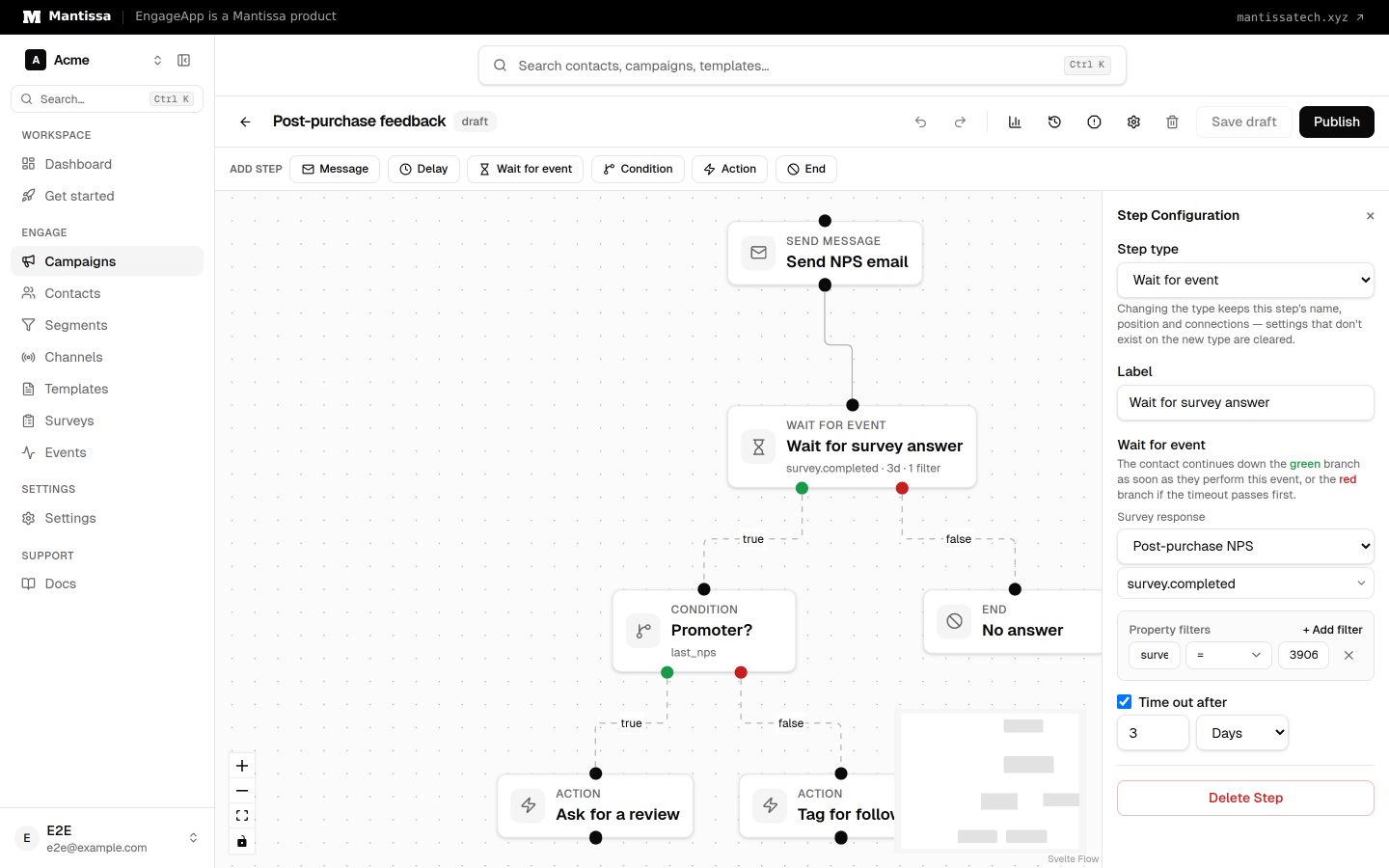
- Wait for the answer. Add a Wait for event step, pick your survey under Survey response, and set the timeout to 3 days.
- Branch on the score. On the true branch, add a Condition on
last_npsgreater than or equal to9. Promoters go to a review request; everyone else gets a tag action such asneeds_follow_up. Connect the false branch (no answer) to an End step, or to one gentle reminder.
Read the results
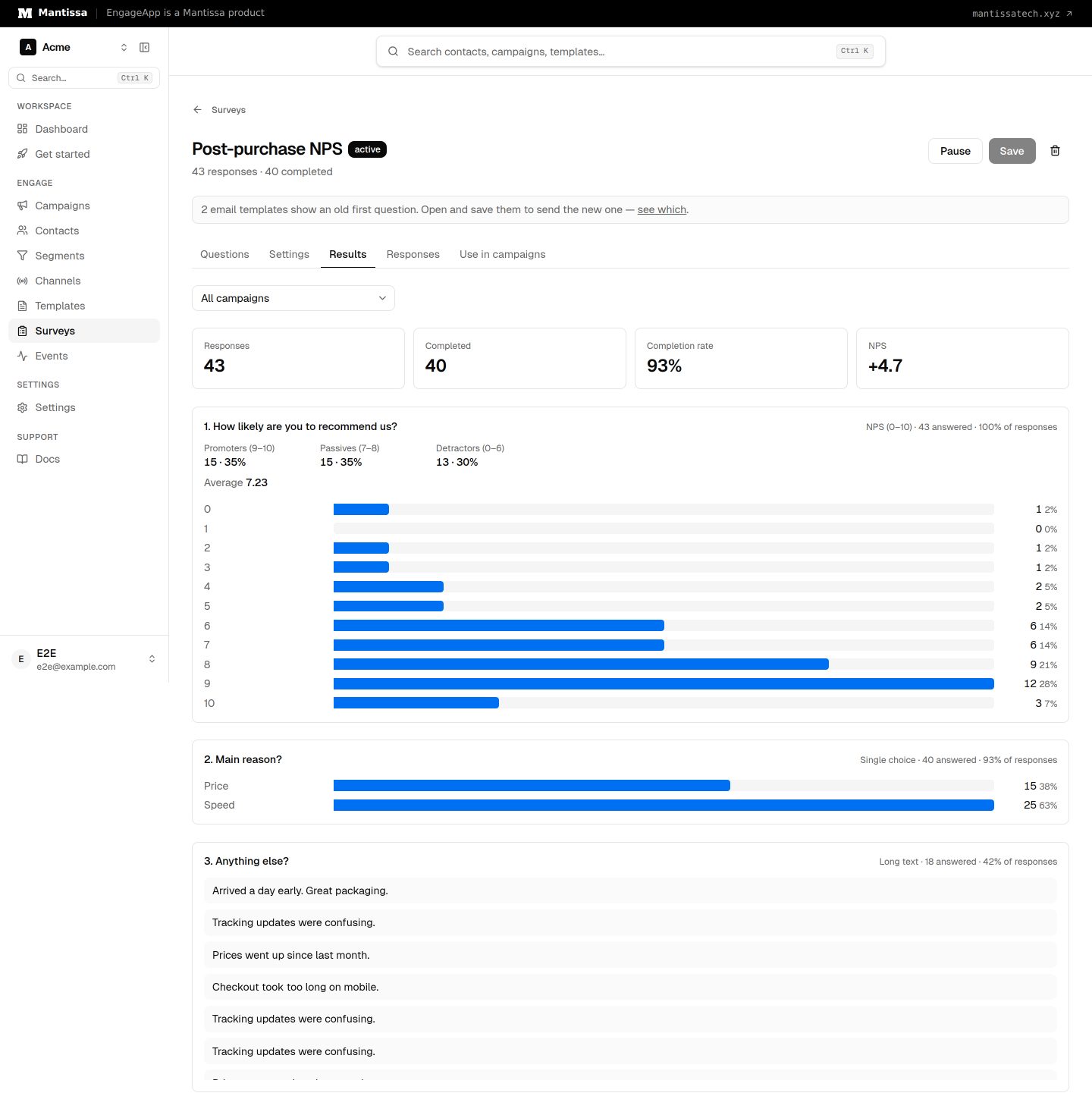
Open the survey and go to Results. Filter by this campaign to see its NPS, the spread of scores and the reasons.
Tips
- Keep it short. One score and one optional question get the most answers.
- Turn on the survey cooldown (Settings → Messaging) so customers who order often are not asked every time.
- Make a segment of contacts with
last_nps6 or lower to follow up in bulk.
Related
Surveys
Collect NPS, CSAT and written feedback from your contacts, then see the results by question and by campaign.
Surveys in campaigns
Send a survey by email, SMS, WhatsApp, push or in-app, wait for the answer, and branch your campaign on it.
Post-purchase follow-up
Turn a one-time buyer into a repeat customer with a well-paced sequence that runs after every purchase.