Surveys
Collect NPS, CSAT and written feedback from your contacts, then see the results by question and by campaign.
A survey is a short questionnaire you send to your contacts. Use it to measure NPS (how likely a customer is to recommend you), CSAT (how satisfied they are), or to ask any question you like. You make a survey once and then use it in as many campaigns and messages as you want. Answers from every send go to the same place, so you can compare them.
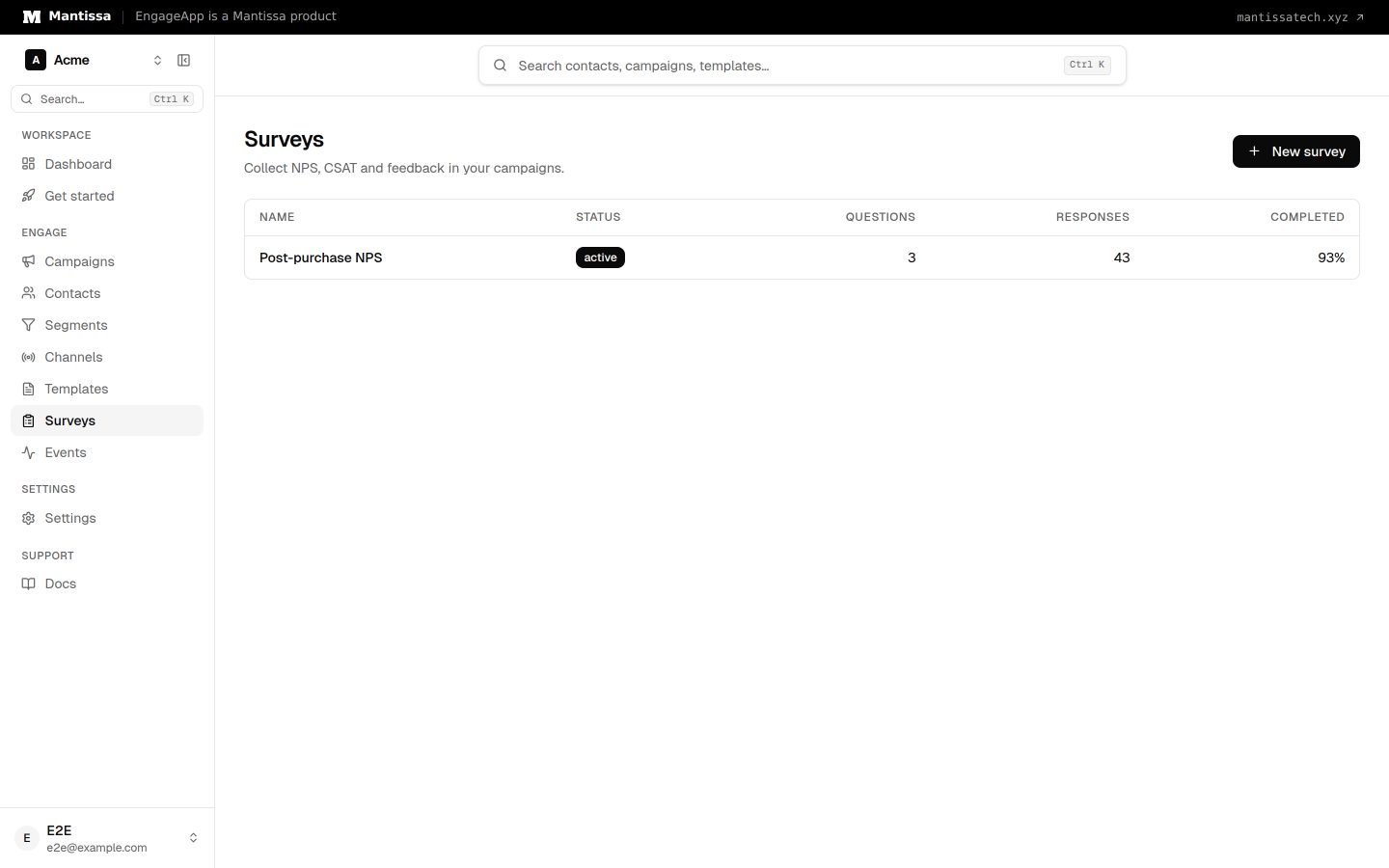
Create a survey
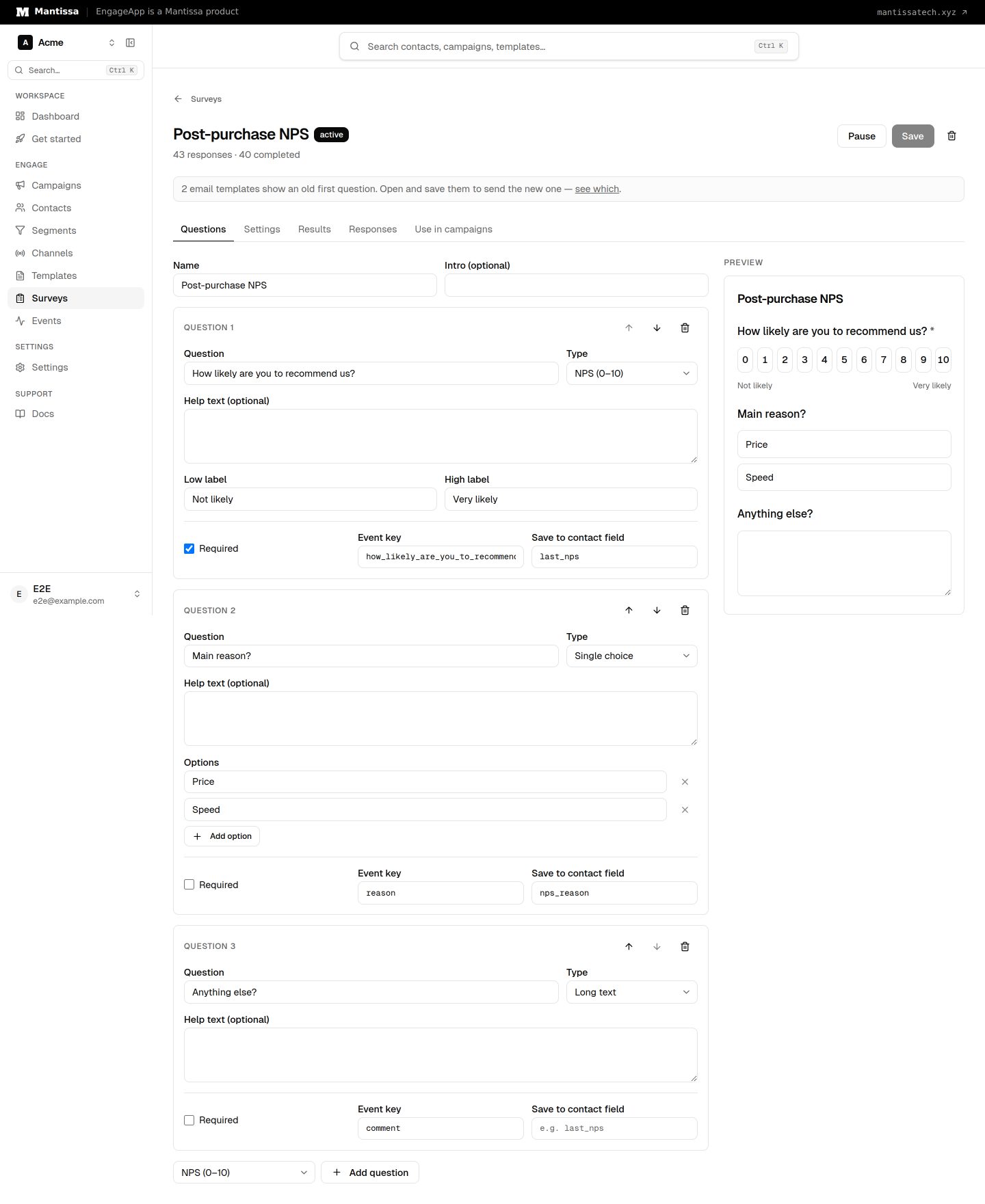
- Go to Surveys → New survey.
- Give it a name and pick a starting point: NPS, CSAT or Blank. NPS and CSAT start with a rating question and a comment box.
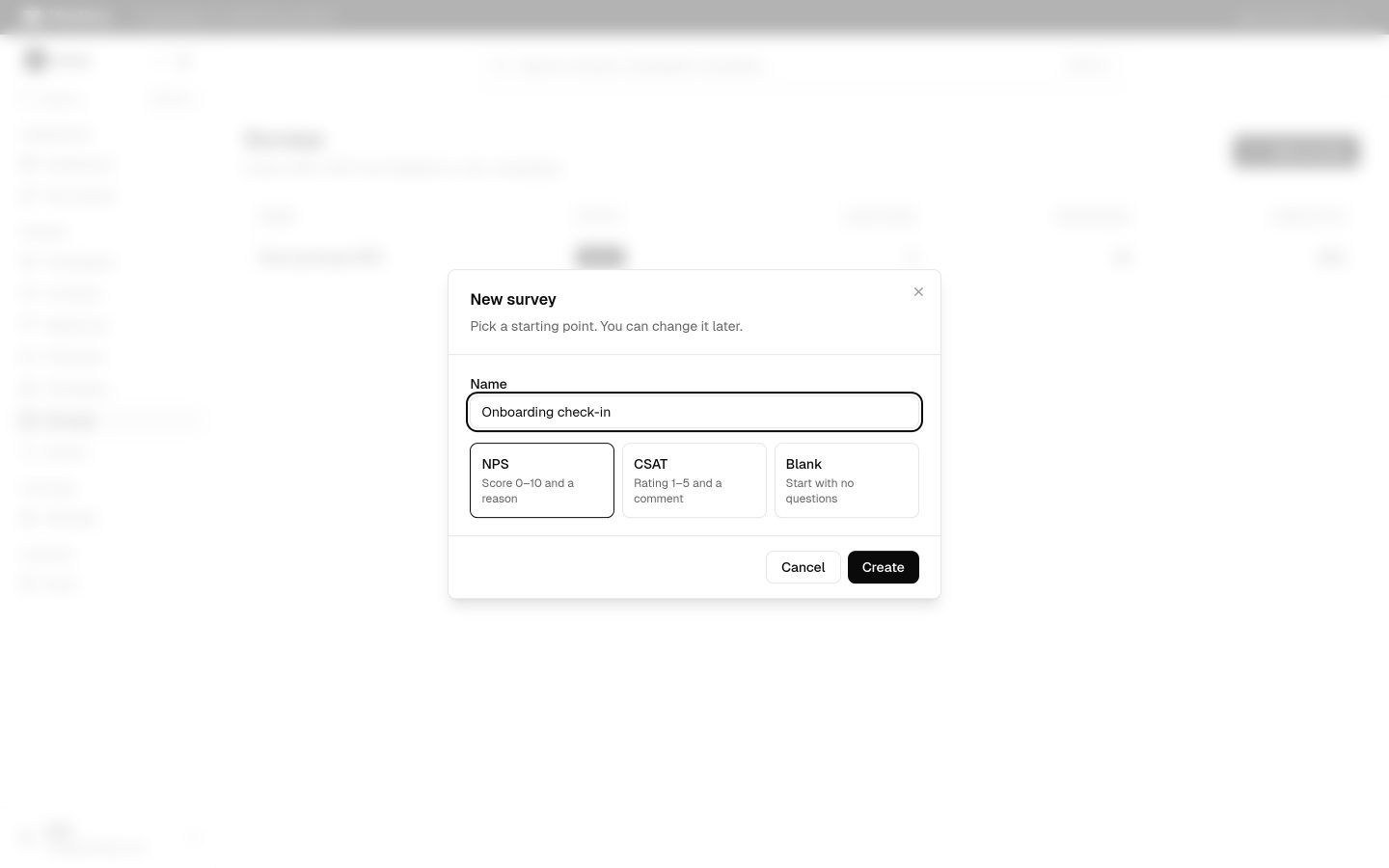
- Edit the questions, then click Save.
- Click Activate. A survey takes answers only while it is active. Pause it to stop new answers; links already sent then show a "closed" page.
Question types
| Type | Answer | One-click in email |
|---|---|---|
| NPS | A score from 0 to 10 | Yes |
| CSAT | A score from 1 to 5 | Yes |
| Yes / No | Yes or no | Yes |
| Single choice | One option from a list | Yes |
| Multiple choice | Any options from a list | No |
| Short text | One line, up to 500 characters | No |
| Long text | A paragraph, up to 5,000 characters | No |
Each question has these settings:
- Required — the contact cannot submit without an answer.
- Low label and High label (NPS and CSAT) — the words under each end of the scale, for example Not likely and Very likely.
- Event key — the name of this answer in survey events, for example
answers.reason. It is made from the question text; you can change it. - Save to contact field — copies the answer to a contact field, for example
last_nps. You can then use it in segments and campaign conditions. For choice questions the option label is saved, not its id.
Survey settings
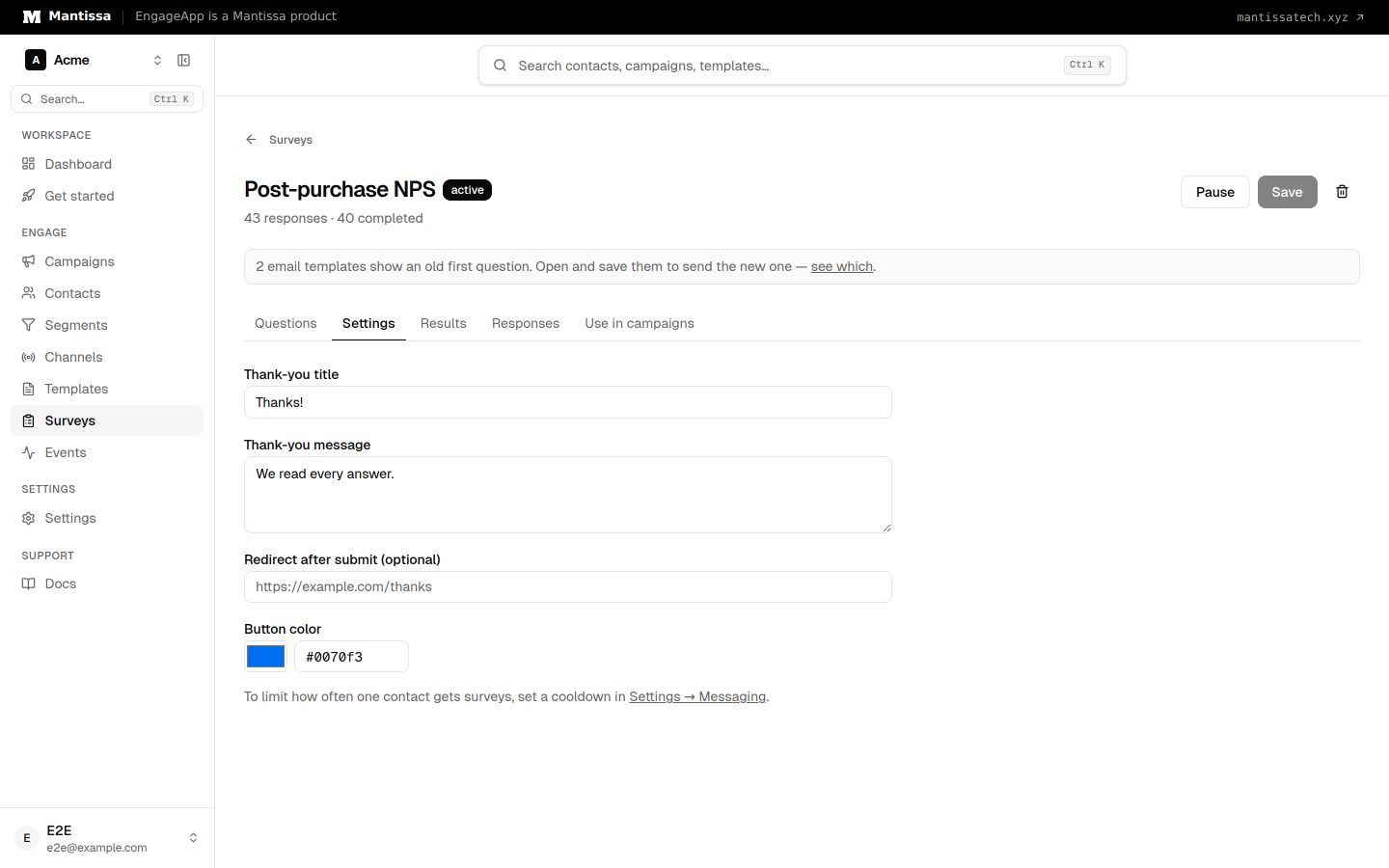
On the Settings tab you set the thank-you title and message, an optional redirect URL to open after the contact submits, and the button color of the survey page.
What your contacts see
Each contact gets a personal survey link. It opens a clean survey page that works on any phone, with no login. When the link comes from an email answer button, the answer the contact clicked is already selected and saved, and the rest of the questions are ready to fill in.
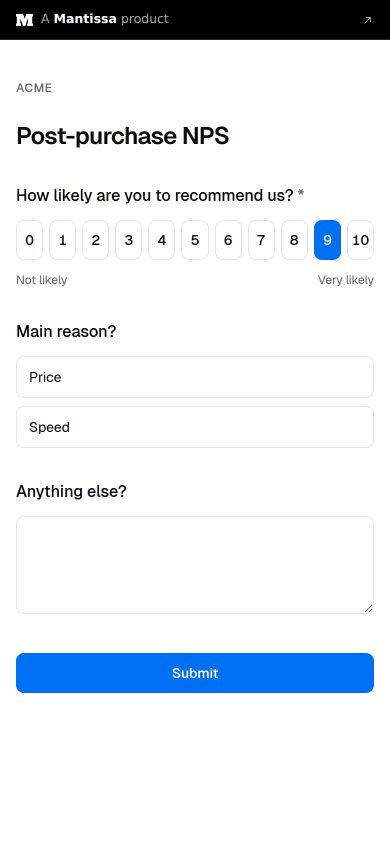
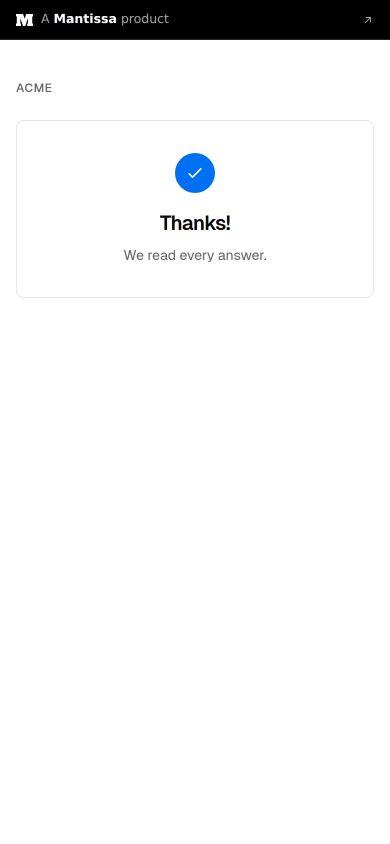
A contact who opens the same link again sees their earlier answers and can change them. One send makes one response, so clicking twice does not count twice.
Results
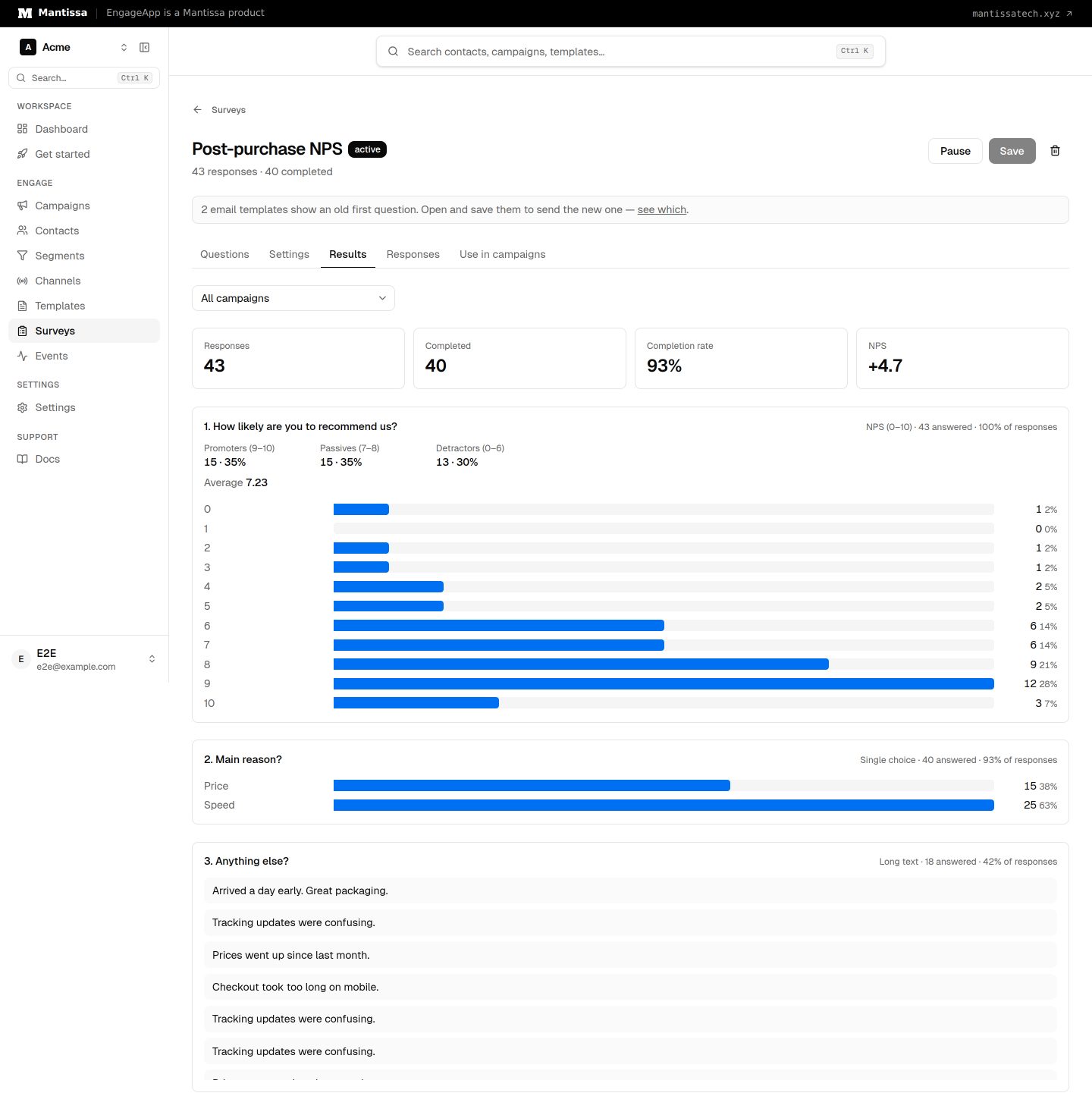
The Results tab shows the number of responses, how many were completed, the completion rate and your NPS. NPS is the percentage of promoters (9–10) minus the percentage of detractors (0–6), so it goes from −100 to +100. Each question shows how its answers are spread, and text questions show the newest answers. Use the campaign filter to see the results of one campaign only.
Responses and export
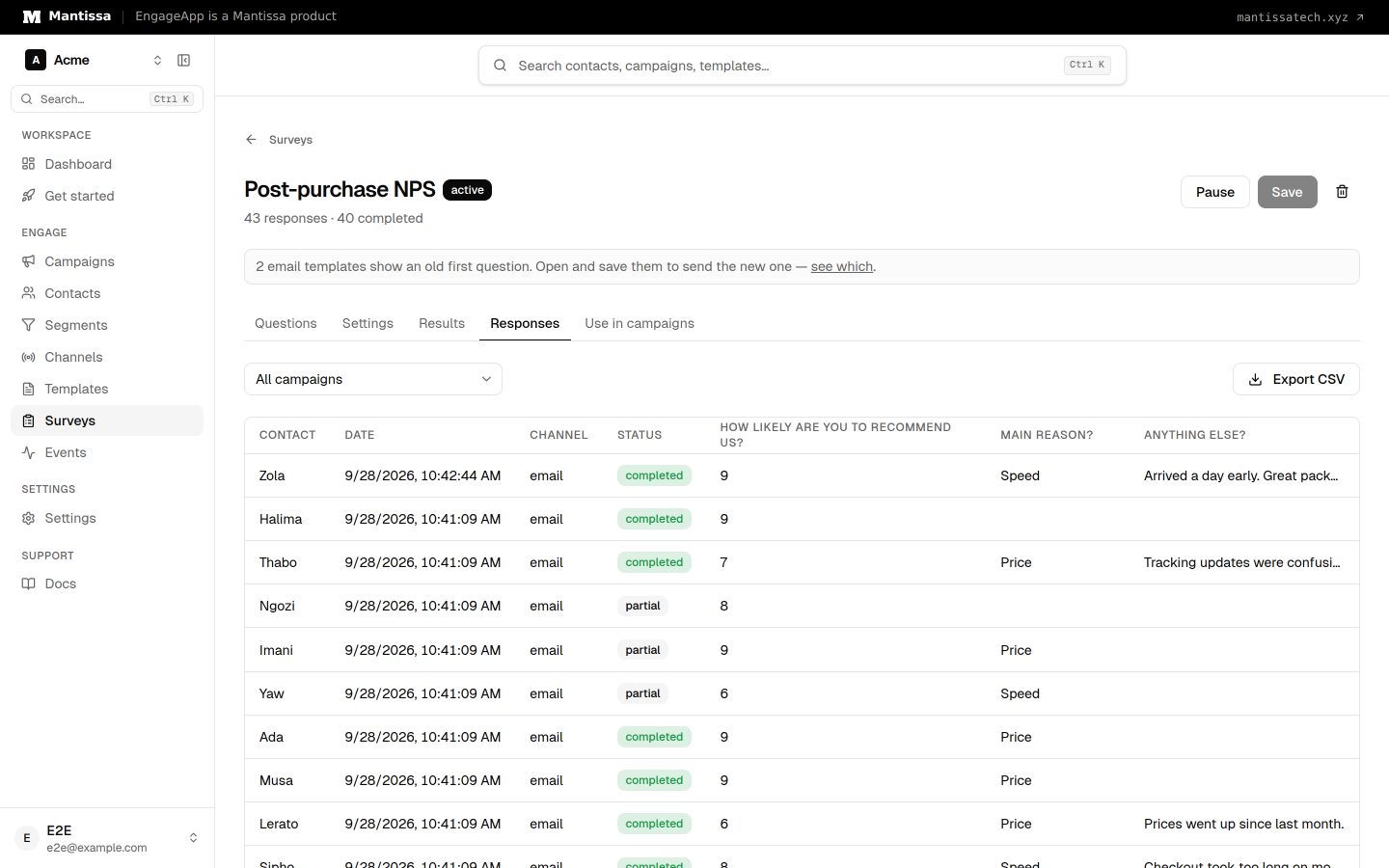
The Responses tab lists each response with the contact, date, channel, status (completed or partial) and every answer. Click Export CSV to download all of them, one column per question. You need permission to read contacts to see this tab.
Do not ask too often
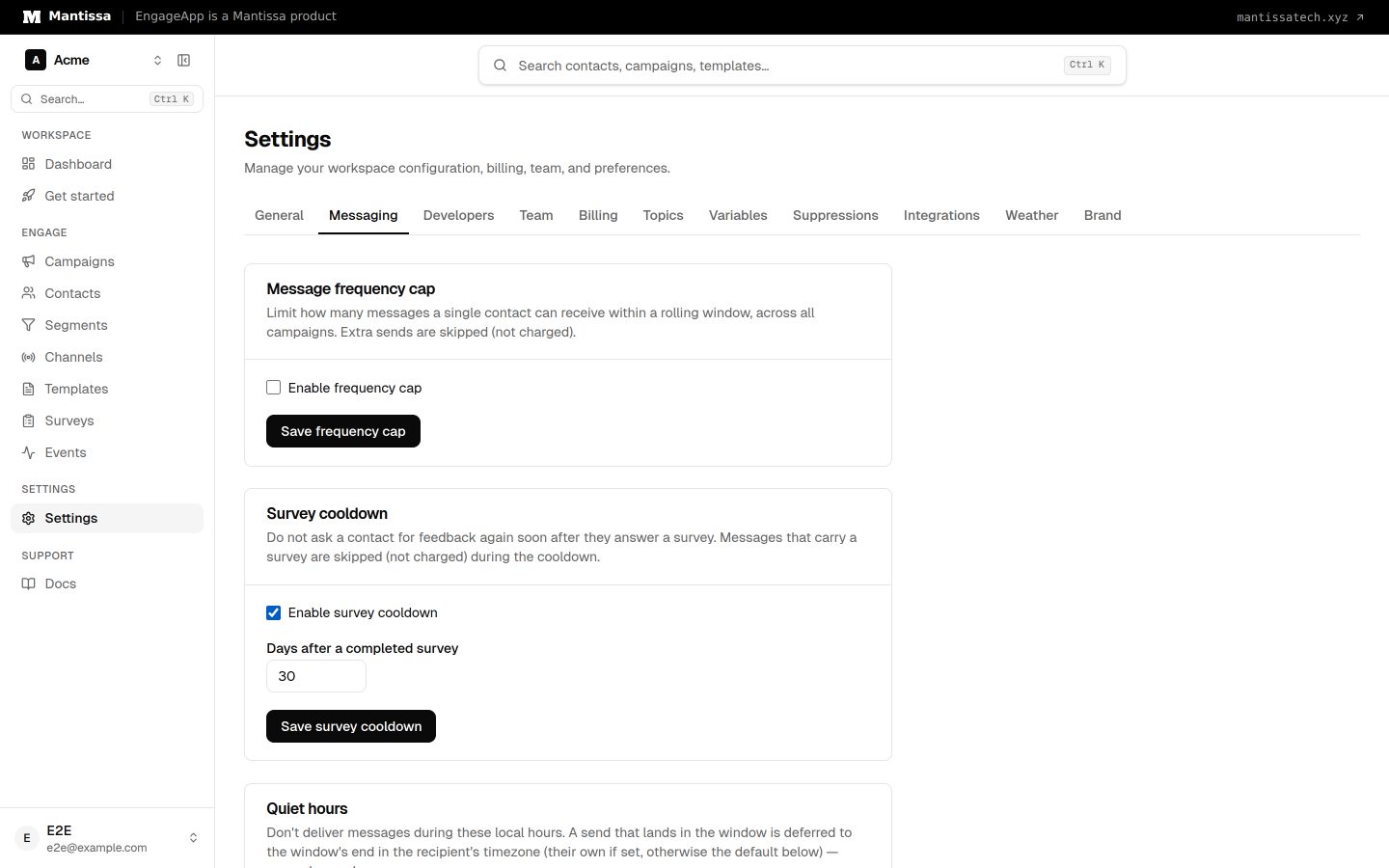
Go to Settings → Messaging → Survey cooldown and set a number of days. If a contact completed any survey in that time, EngageApp skips messages that ask for feedback — messages with a survey block, a survey link or an in-app survey. Skipped messages are not charged. Other messages still go out.
Good to know
- Link checkers do not count as answers. Many email systems open every link to scan it. Opening a survey link records nothing; the answer is saved only by the survey page itself, in the contact's browser.
- Links last 90 days. After that the survey page says the link has expired.
- Deleting a survey stops its links from working. Its responses stay in your workspace.
Next steps
- Send your survey by email, SMS, WhatsApp, push or in-app, and branch on answers: Surveys in campaigns.
- Build a complete feedback flow: NPS and feedback.
Related
Surveys in campaigns
Send a survey by email, SMS, WhatsApp, push or in-app, wait for the answer, and branch your campaign on it.
NPS and feedback
Ask for an NPS score after delivery, then thank promoters and follow up with unhappy customers automatically.
Contacts
How EngageApp models your end-users as contacts, the fields they carry, and the ways to add them.