Connect WooCommerce
Connect a WooCommerce store from Settings → Integrations with a REST API key so EngageApp can register webhooks and receive order and customer events.
The WooCommerce integration connects from Settings → Integrations using a WordPress REST API key. When you wire up the store, EngageApp registers its webhooks for you — you do not need to configure the WooCommerce webhook screen by hand.
What you connect today
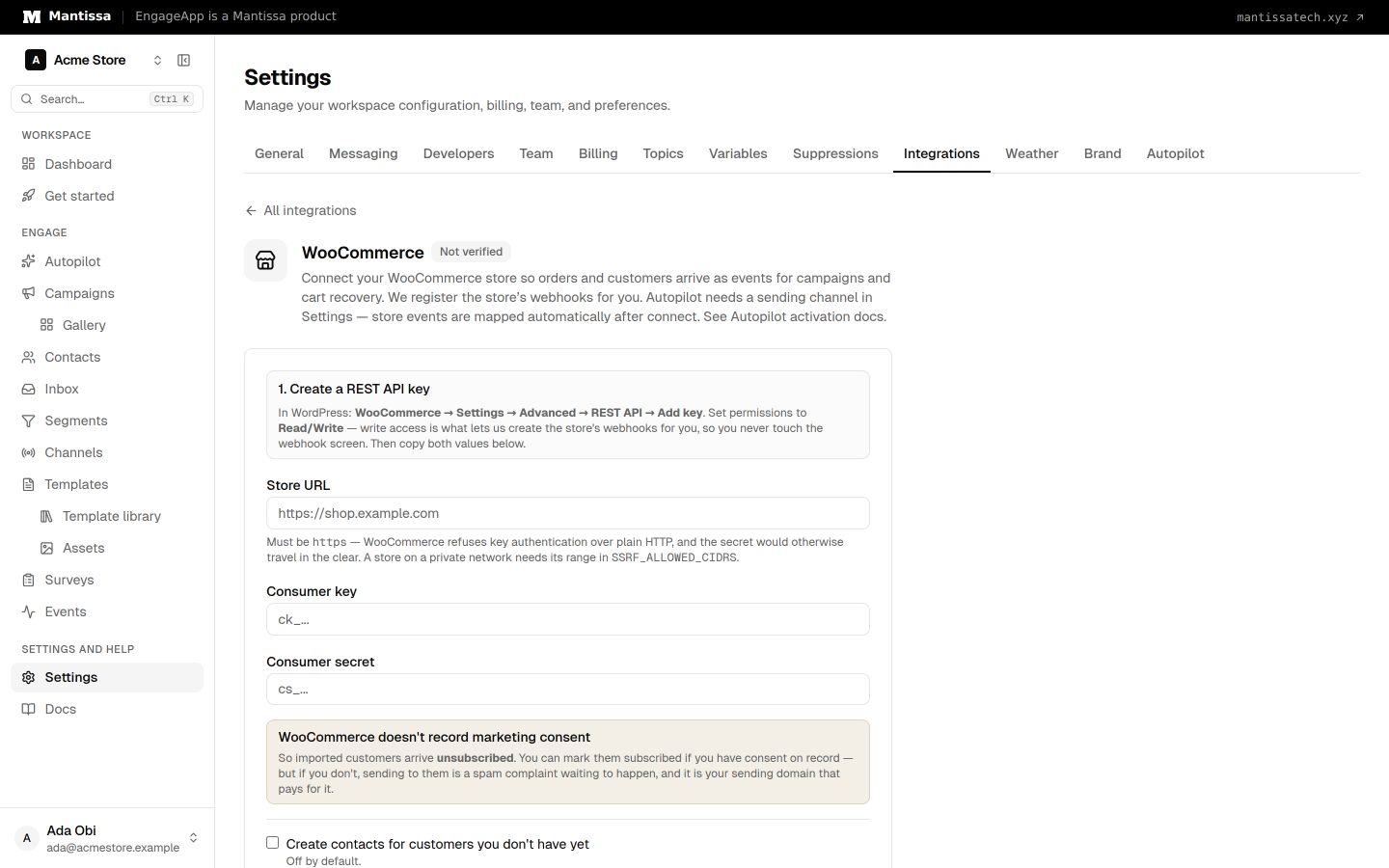
Provide the store URL plus a WooCommerce REST consumer key and consumer secret with Read/Write permissions. Write access is required so EngageApp can create webhooks. This is not a WordPress.org plugin marketplace OAuth flow.
Connect WooCommerce
- In WordPress: WooCommerce → Settings → Advanced → REST API → Add key. Set permissions to Read/Write, then copy the consumer key and secret.
- In EngageApp, open Settings → Integrations → WooCommerce.
- Enter the store URL as
https://…(HTTPS is required — WooCommerce refuses key authentication over plain HTTP). - Paste the consumer key and consumer secret, then choose Save. EngageApp encrypts credentials at rest.
- Choose Test connection. EngageApp calls your store to verify the credentials.
- Choose Wire up store. EngageApp registers the store's webhooks for you.
What arrives as events
Orders and customers flow in as ordinary tenant events (for example order.placed). Use them in campaign triggers, waits, segments, and conversion goals like any other event.
Cart and checkout signals
WooCommerce has no native cart or checkout webhook. For abandoned-cart style journeys you typically need the optional storefront snippet from Settings (publishable pk_ key) so browse/cart intent can reach EngageApp. Order and customer webhooks still work without the snippet.
Cart recovery and Autopilot
Build cart recovery from the events you receive — for example wait after checkout intent until order.placed, then send. After the store is connected, Settings can offer turning on Autopilot so EngageApp proposes campaigns for approval. Connect first; treat Autopilot as a next step in Settings, not an App Store install.
Manage the connection
Review, update, or disconnect under Settings → Integrations. Rotate the REST key there if you regenerate it in WooCommerce.
Next steps
- Public overview: Product → Integrations.
- Events and campaign triggers.
- Autopilot activation after your store is connected.
- See the cart abandonment use case for an event-based recovery pattern.
Related
Events
Send behavioral events about your contacts to trigger campaigns, gate waits, and power segments.
Triggers & enrollment
A trigger decides how contacts get enrolled into a campaign — manually, by event, on a schedule, or when they join or leave a segment.
Activating the autopilot
Turn on the Engagement Autopilot: pick a lifecycle model, map your events to canonical behaviors, choose autonomy, and select participating channels.