Surveys in campaigns
Send a survey by email, SMS, WhatsApp, push or in-app, wait for the answer, and branch your campaign on it.
After you make a survey, you put it in a message and send it from a campaign. Each answer then writes events and can update contact fields, so the rest of the campaign can react to it.
Email: the Survey block
In the email editor, drag the Survey block into your email and pick a survey in the panel on the right. The first question shows in the email as answer buttons. One click saves that answer and opens the rest of the survey. You can change the button color and the button text color.
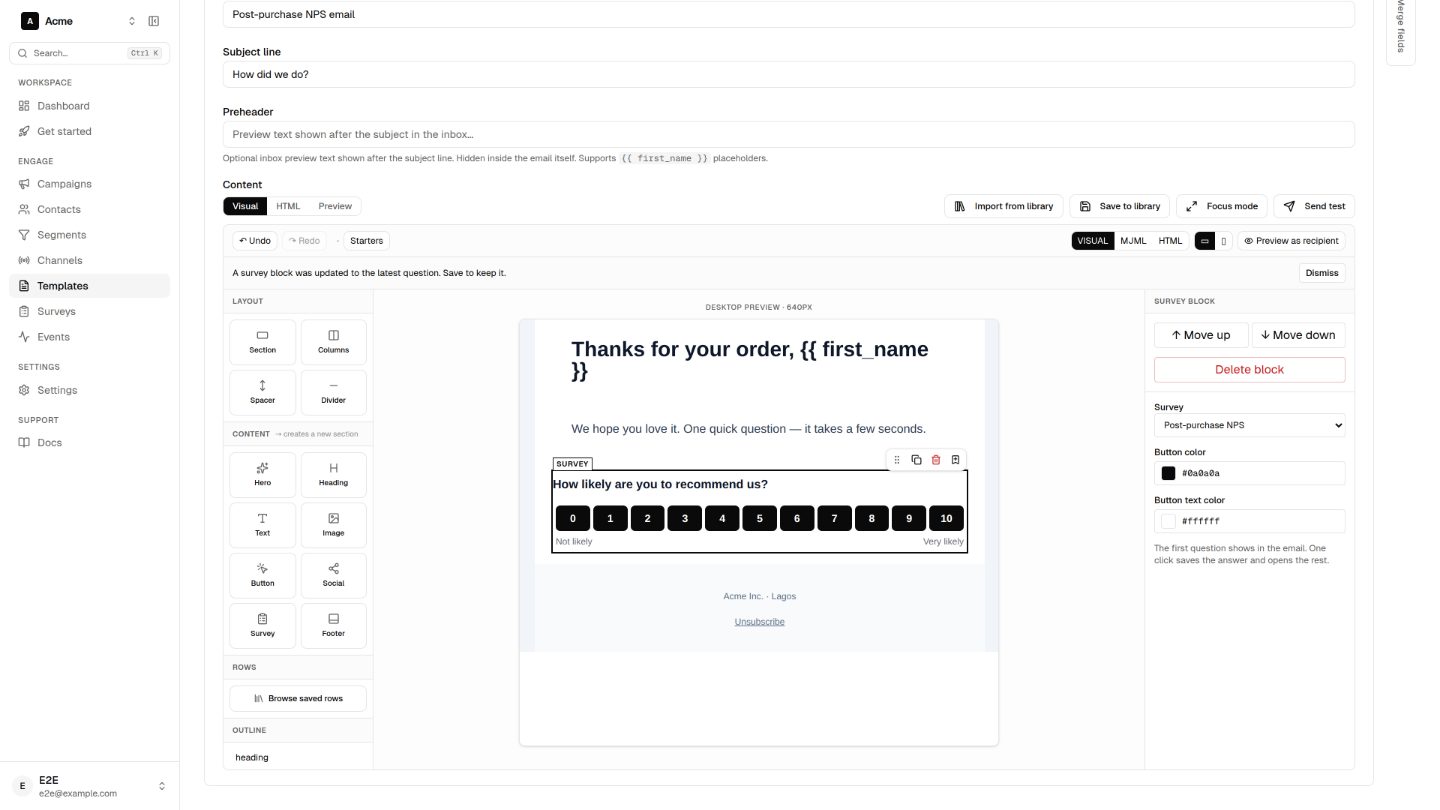
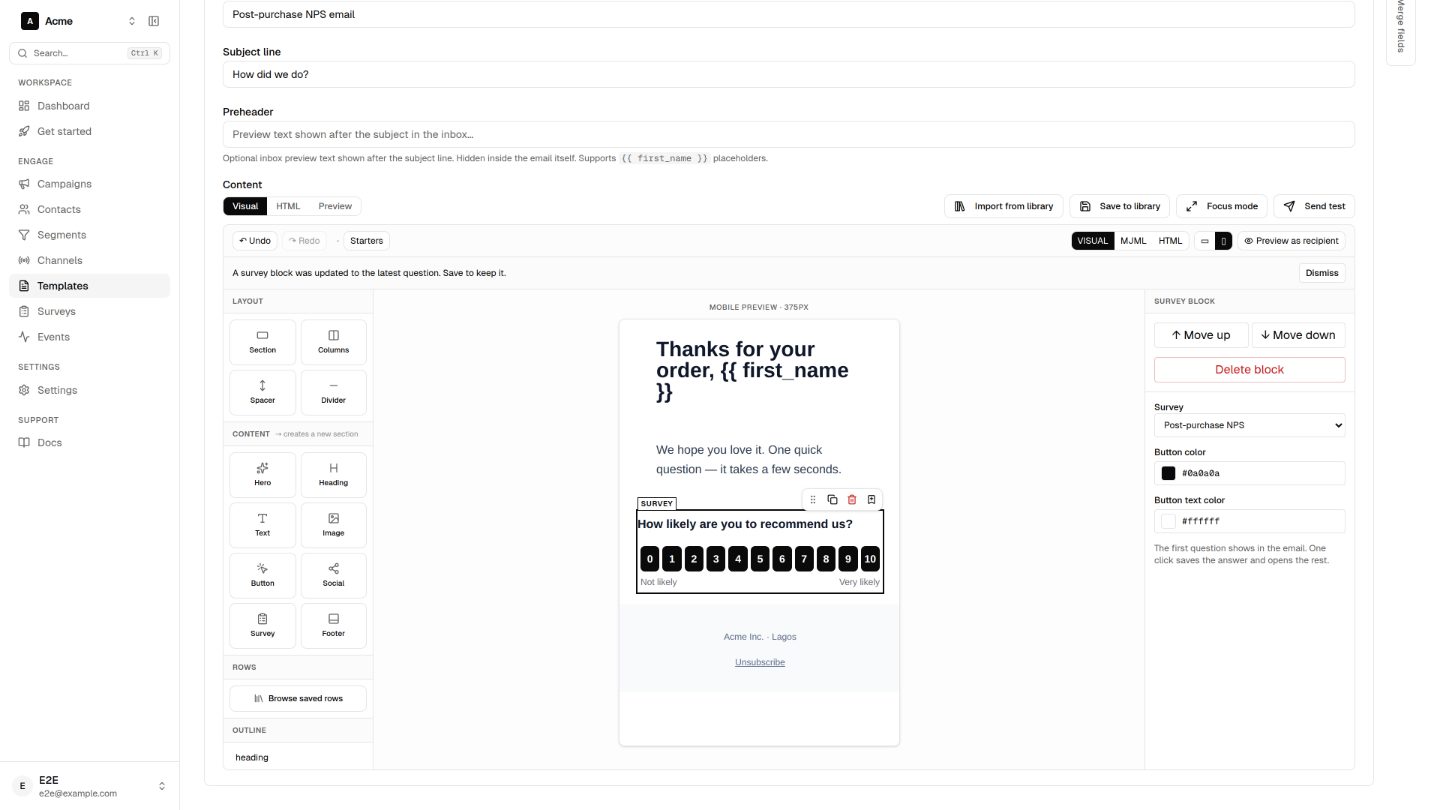
- One-click answers work for NPS, CSAT, Yes / No and Single choice first questions. For other types the block shows one button that opens the survey.
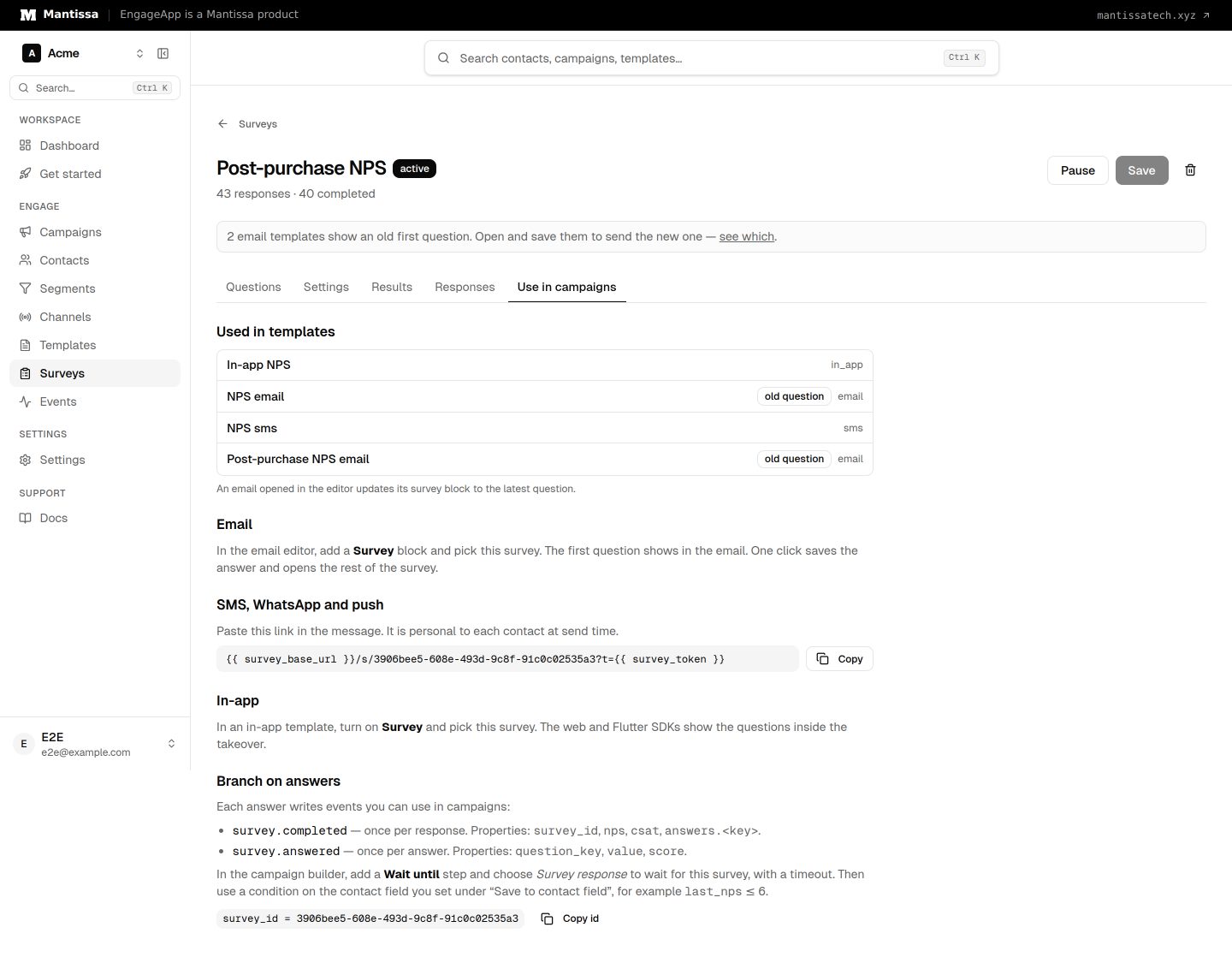
- The block keeps a copy of the first question. If you edit the survey later, open the email and save it again. The editor updates the block for you when you open it, and the survey's Use in campaigns tab marks emails that still show an old question.
SMS, WhatsApp and push: the survey link
Paste the survey link into your message. You find it, ready to copy, on the survey's Use in campaigns tab:
{{ survey_base_url }}/s/<survey id>?t={{ survey_token }}Both placeholders are filled for each contact at send time, so every contact gets a personal link.
In-app
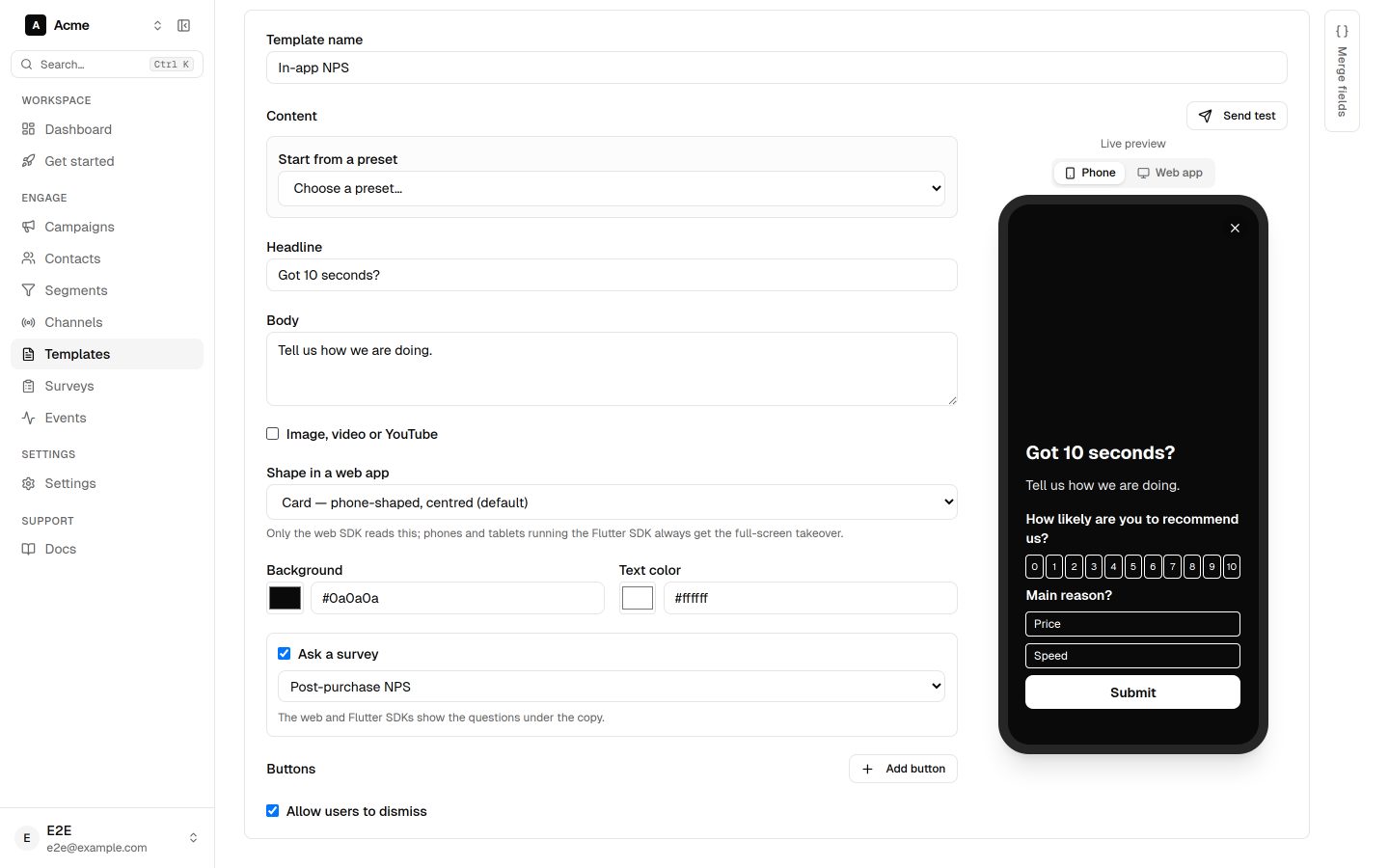
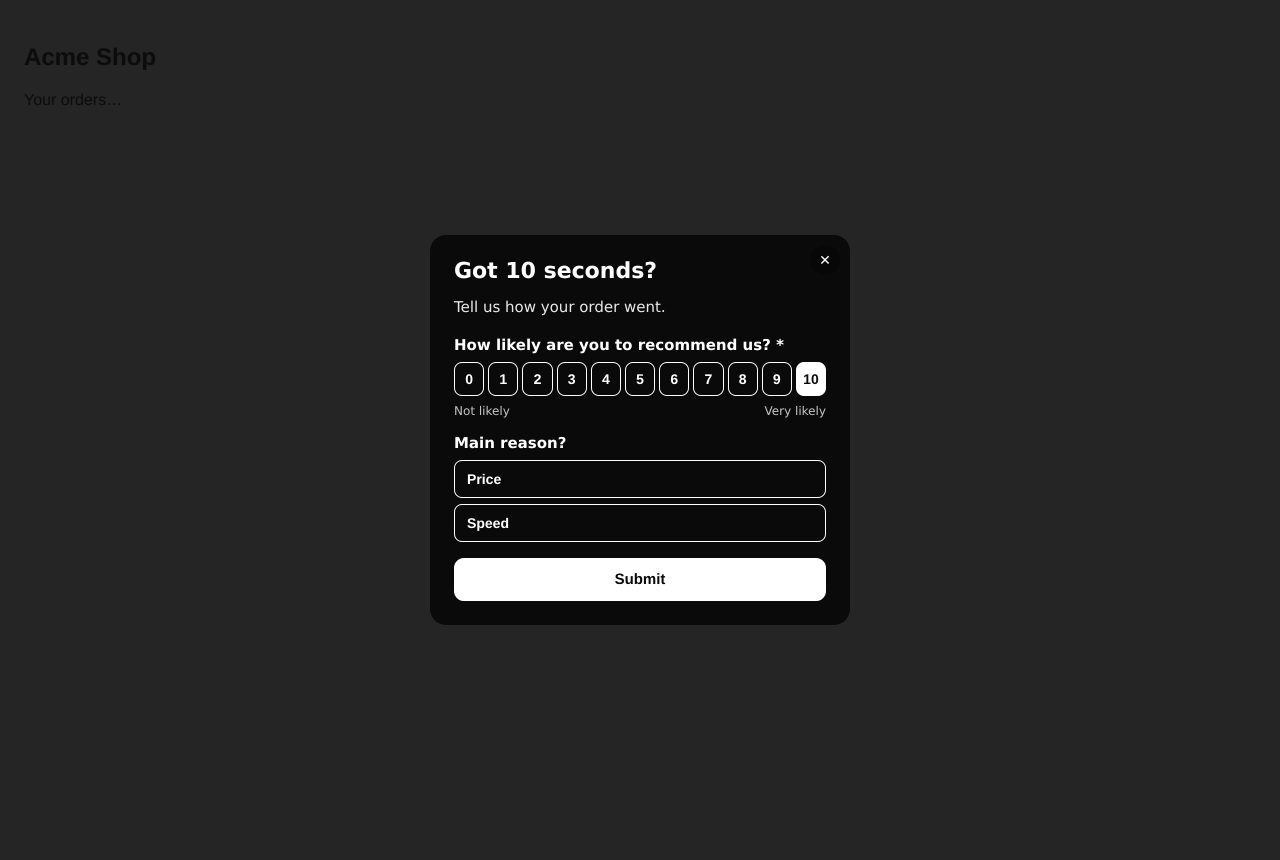
In an in-app takeover template, turn on Ask a survey and pick a survey. The questions show under your headline and body. Both the Web SDK and the Flutter SDK show the survey and send the answers; after the contact submits, the thank-you text shows and the takeover closes.
Survey events
Answers write two events on the contact. You can use them in triggers, waits, conditions and segments like any other event.
| Event | When | Properties |
|---|---|---|
survey.answered | Once for each answer | survey_id, survey_name, question_key, question_type, value, score (rating questions), campaign_id, channel |
survey.completed | Once, when the contact submits | survey_id, survey_name, response_id, nps, csat, answers.<event key>, scores.<event key>, campaign_id, channel |
Wait for the answer
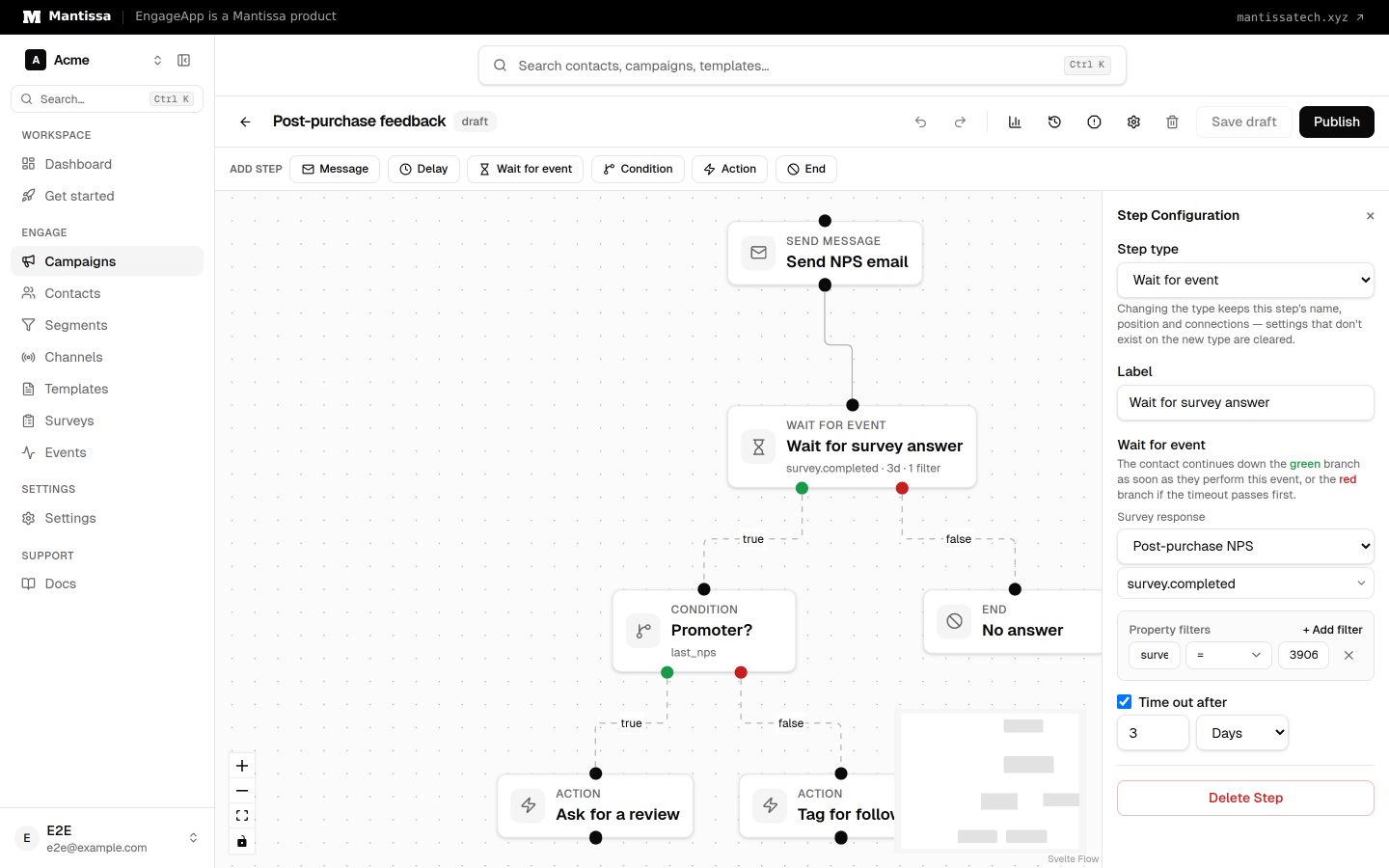
In the flow builder, add a Wait for event step after the step that sends the survey. In the step panel, pick your survey under Survey response. This waits for survey.completed from that survey only. Set Time out after to decide how long to wait. Contacts who answer take the true branch; contacts who do not answer in time take the false branch.
Branch on the answer
The easiest way is to save the answer to a contact field (the Save to contact field setting on the question, for example last_nps). Then add a Condition step on that field:
last_npsgreater than or equal to9— promoters. Ask for a review or a referral.last_npsless than or equal to6— detractors. Tag them or alert your team.
Because the value stays on the contact, you can also build segments from it, for example "all detractors in the last quarter".
Not too often
Turn on the survey cooldown so a contact who just gave feedback is not asked again right away by another campaign.
Related
Surveys
Collect NPS, CSAT and written feedback from your contacts, then see the results by question and by campaign.
Flow builder
The drag-and-drop canvas where you assemble a campaign from trigger, send, delay, condition, and wait-until steps.
NPS and feedback
Ask for an NPS score after delivery, then thank promoters and follow up with unhappy customers automatically.