Templates
Author reusable message content for each channel, with per-contact merge fields resolved at send time.
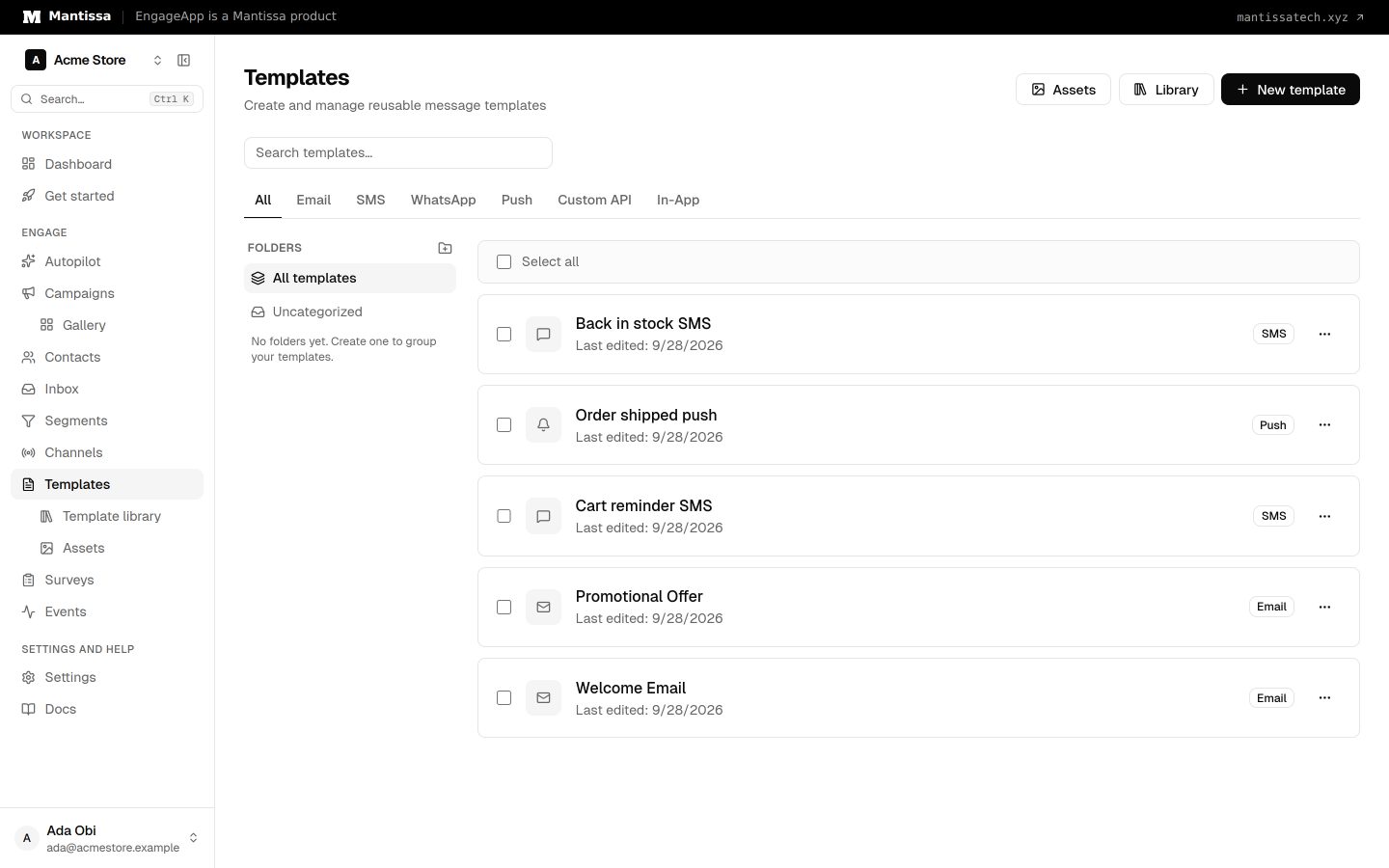
A template is the message content for a channel. Every template is bound to a single channel type, so its format matches how that channel delivers.
Merge fields
Templates personalize with {{ variable }} merge fields, resolved per contact at send time.
The customer object
Everything about the recipient lives under customer, selected with a dot:
{{ customer.first_name }},{{ customer.last_name }},{{ customer.full_name }}{{ customer.email }},{{ customer.phone }}{{ customer.id }},{{ customer.external_id }}{{ customer.timezone }},{{ customer.subscribed }},{{ customer.created_at }}{{ customer.lifecycle_stage }}
Any custom attribute on the contact is reachable the same way. An attribute named plan is available as {{ customer.plan }}, and also as {{ customer.attributes.plan }} if you prefer to be explicit. Attributes keep their real types, so a list attribute can be looped:
{% for tag in customer.attributes.tags %}{{ tag }} {% endfor %}The older forms still work and mean exactly the same thing: {{ contact.first_name }} and the bare {{ first_name }} are both equivalent to {{ customer.first_name }}. Existing templates keep working unchanged — customer is simply the clearer name going forward.
Workspace variables
Values your whole team shares — a support address, a brand name, a sign-off — are defined once under Settings → Variables and used as {{ workspace.support_email }}.
A workspace variable's value can itself contain merge fields, including other workspace variables, which makes it useful as a reusable snippet. Chains up to two hops resolve; anything deeper leaves the innermost reference blank rather than showing raw braces. Avoid pointing two variables at each other — the result is partially expanded text rather than an error.
Finding variables
The Merge fields panel beside the editor lists everything available in your workspace, including your own custom attributes, and is searchable. Click one to insert it at the cursor.
A variable that does not resolve renders as empty text rather than showing raw braces, so a typo produces a gap rather than a broken-looking message. The editor warns you about unrecognized variables before you save.
Formats by channel
Each channel type has its own template format:
- Email templates are built in a visual MJML editor.
- Push templates define a title, body, and click action — see Push templates.
- Other channels have their own text or payload formats.
The library
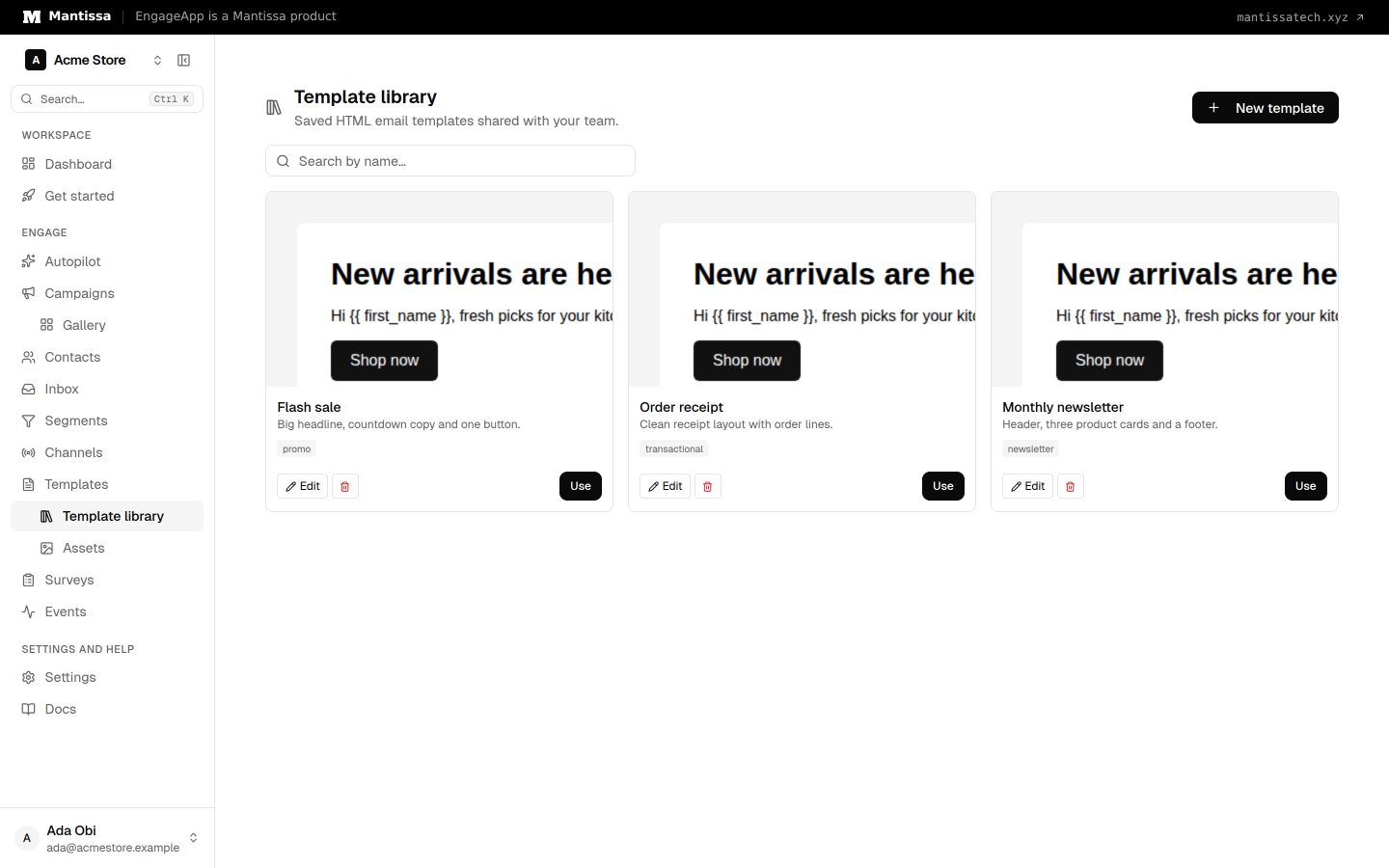
The Template library holds email templates your team saved, so you do not have to build every message from scratch. In the email editor, select Save to library to add the current email, or Import from library to start from a saved one. Open the library from Templates → Library to search, edit or delete entries.
Creating and using a template
- Go to Templates → New template and pick the channel type.
- Author the content, adding merge fields and (for email) assets.
- Reference the template from a campaign's send message step to deliver it.
Next steps
- Design rich email in the Email editor.
- Write mobile alerts with Push templates.
- Reuse media across messages with Assets.
- See which channels templates can target in the Channels overview.
Related
Email editor
Compose responsive email visually with block-based, MJML-powered templates.
Push templates
Define the title, body, click action, and custom data for push notifications.
Channels overview
The delivery channels EngageApp supports — email, SMS, WhatsApp, push, custom API, and full-screen in-app takeovers.
Assets
Upload images and videos to a CDN-backed media library and reuse their URLs across templates.