Connect Shopify
Connect a Shopify store from Settings → Integrations so orders, checkouts, and customers arrive as EngageApp events for campaigns and cart recovery.
The Shopify integration lets a merchant connect their store from Settings → Integrations. Once connected, store activity arrives as ordinary tenant events you can use in campaign triggers, waits, segments, and Autopilot — without a separate Shopify App Store install.
What you connect today
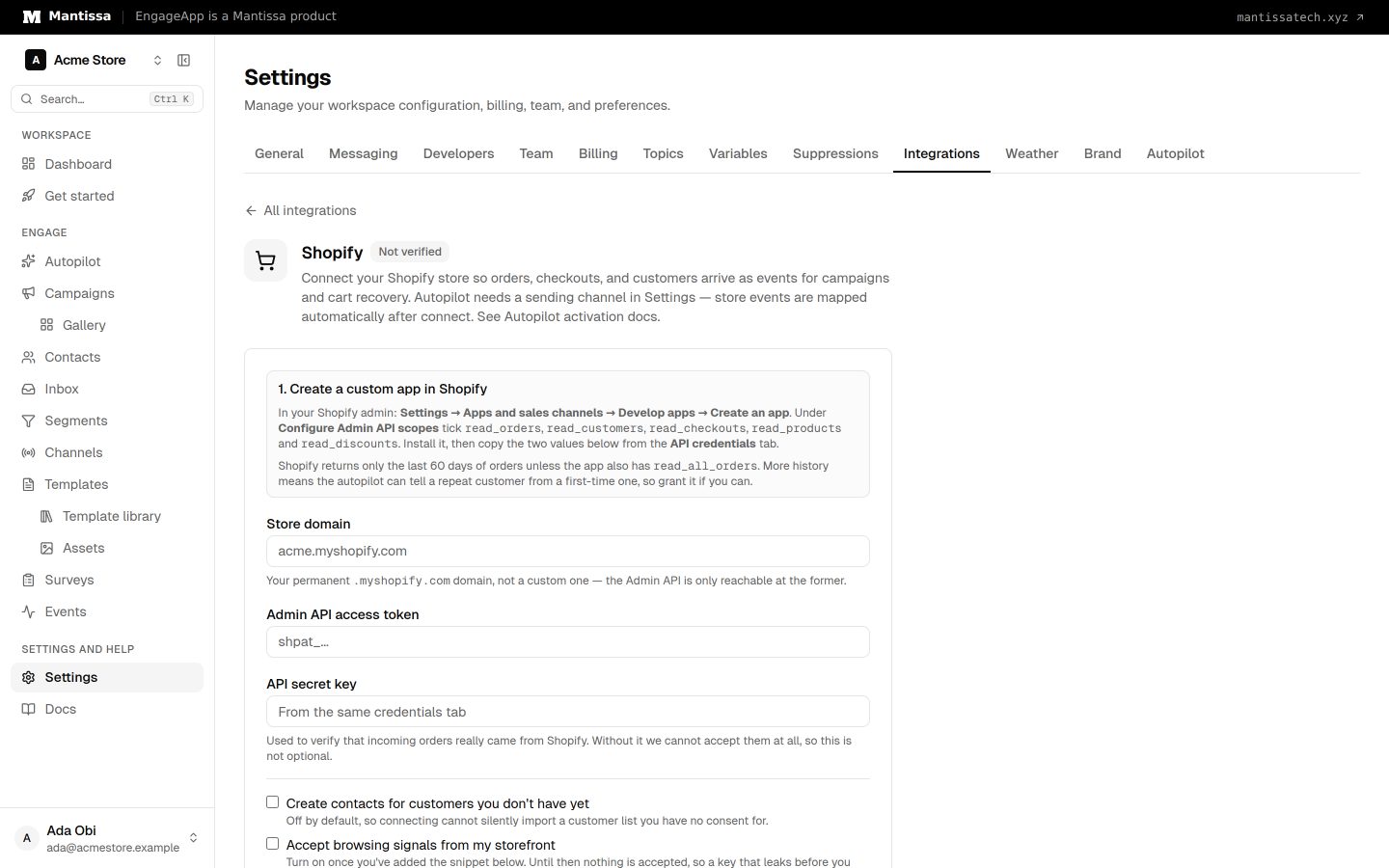
EngageApp uses a custom app in the Shopify admin (Admin API access token + shop domain). This is not an App Store OAuth install and not an embedded Shopify app. You create the custom app in your store, copy credentials into EngageApp, and we verify the connection with a test call.
Connect Shopify
- In Shopify admin, create a custom app. Under Configure Admin API scopes, tick
read_orders,read_customers,read_checkouts,read_productsandread_discounts. Addread_all_orderstoo if you can, so EngageApp sees more than the last 60 days of orders. - Install the custom app and open the API credentials tab. Copy the Admin API access token and the API secret key.
- In EngageApp, open Settings → Integrations → Shopify.
- Enter your permanent
.myshopify.comstore domain (not a custom domain — the Admin API is only reachable on the myshopify hostname). - Paste the Admin API access token and API secret key, then choose Save. EngageApp encrypts credentials at rest.
- Choose Test connection. EngageApp calls your store to verify the credentials.
- Choose Wire up store. EngageApp registers the store's webhooks for you.
What arrives as events
After a successful connect, Shopify webhooks feed EngageApp events such as checkouts and orders (for example checkout.started and order.placed), plus customer identity where available. Those are normal tenant events — the same triggers, wait_until, templating, and conversion goals you already use.
Cart recovery and Autopilot
Abandoned-cart style journeys are built from those events — typically wait on checkout.started until order.placed (or a timeout), then send. After the store is connected, Settings can also offer turning on Autopilot so EngageApp proposes retention campaigns for approval. Connect the store first; do not expect an App Store one-click install.
Optional storefront script
For richer browse/cart signals, Settings shows a small storefront snippet using a publishable key (pk_), never a secret key. Shopify still delivers checkout and order events via Admin API webhooks even if you skip the snippet.
Manage the connection
Review, update, or disconnect under Settings → Integrations. Rotate the Admin API token there if Shopify regenerates it.
Next steps
- See the public overview on Product → Integrations.
- Learn how events drive campaigns.
- Read campaign triggers and Autopilot activation after your store is connected.
- See the cart abandonment use case for an event-based recovery pattern.
Related
Events
Send behavioral events about your contacts to trigger campaigns, gate waits, and power segments.
Triggers & enrollment
A trigger decides how contacts get enrolled into a campaign — manually, by event, on a schedule, or when they join or leave a segment.
Activating the autopilot
Turn on the Engagement Autopilot: pick a lifecycle model, map your events to canonical behaviors, choose autonomy, and select participating channels.