Guide: set up Engage with an AI agent
Step by step: create an agent key, connect Claude or Cursor, then let the agent set up your brand and Autopilot, and build, publish and manage campaigns.
An AI agent can set up your workspace for you. You talk to the agent in plain words. The agent uses the Engage MCP server to read and change your brand profile, workspace settings and Autopilot, and to draft campaigns with the AI campaign generator.
This guide takes about 15 minutes. For the full list of tools and rules, see MCP server for AI agents.
What you need
- The owner or admin role in the workspace. You need it to create keys and to approve agent requests.
- An MCP client that supports remote servers with a custom header, for example Claude Code or Cursor.
Step 1: Create an agent key
- Go to Settings → Agent access.
- In Agent keys, type a name, for example Claude setup helper.
- Select the scopes. Give the agent only what the task needs (see the table).
- Click Create key.
- Click Copy key and keep the key in a safe place. Engage shows the key only once. Click Done when you have it.
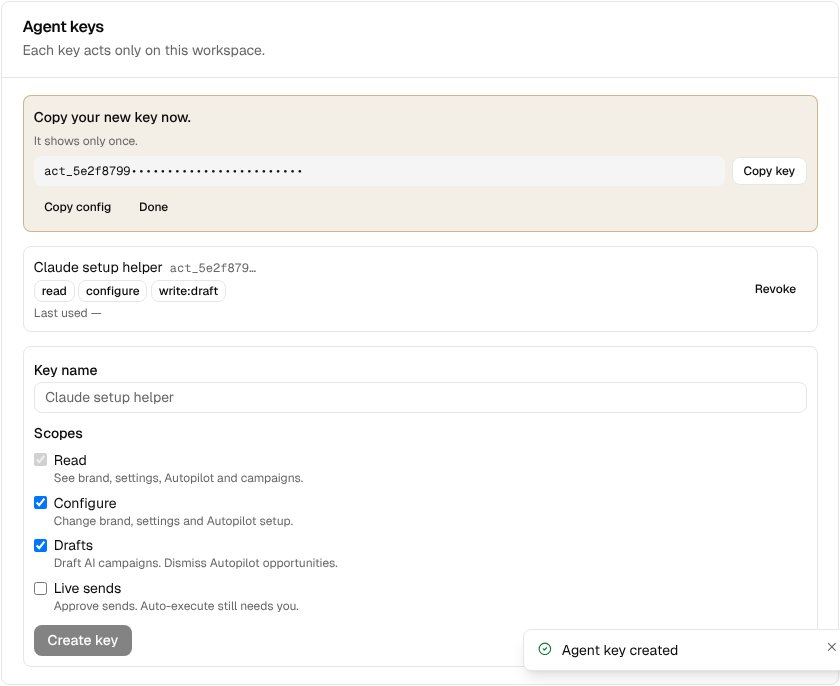
| What the agent will do | Scopes to select |
|---|---|
| Only read and report | Read |
| Set up the brand, settings and Autopilot (a person approves each campaign) | Read, Configure |
| Also build and manage draft campaigns, templates and segments, and draft campaigns with AI | Read, Configure, Drafts |
| Also ask to publish campaigns (you still approve), or ask for auto-execute mode | Read, Configure, Drafts, Live sends |
If you lose a key, revoke it and create a new one. Engage stores only a hash of the key, so nobody can show it again.
Step 2: Connect your agent
The Connect an AI agent card shows your MCP URL and a ready setup text. After you create a key, the setup text holds the new key.
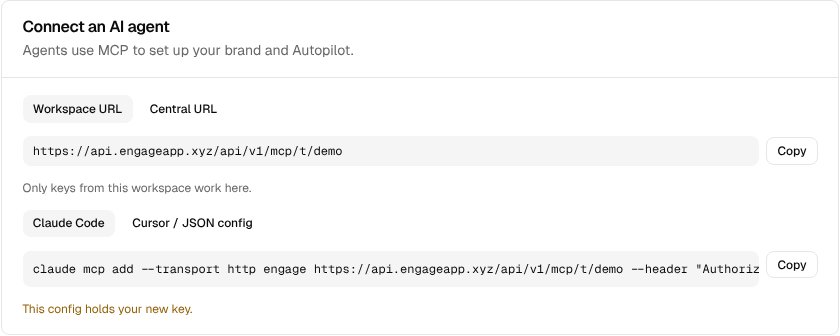
- Workspace URL (
/api/v1/mcp/t/<your-slug>): only keys from this workspace work here. Use it when you can. - Central URL (
/api/v1/mcp): one address for all workspaces. The key decides the workspace.
Claude Code
Select Claude Code, click Copy, and run the command in a terminal:
claude mcp add --transport http engage https://<api-host>/api/v1/mcp/t/<slug> \
  --header "Authorization: Bearer act_…"
Cursor and other clients
Select Cursor / JSON config, click Copy, and paste it into the client's MCP config. In Cursor, that is .cursor/mcp.json in your project, or ~/.cursor/mcp.json for all projects.
{
  "mcpServers": {
    "engage": {
      "url": "https://<api-host>/api/v1/mcp/t/<slug>",
      "headers": { "Authorization": "Bearer act_…" }
    }
  }
}
Test the connection
Ask the agent: "Which Engage workspace are you connected to?" The agent calls workspace_whoami and tells you the workspace name, the key's scopes and the tools it can use.
Step 3: Set up your brand
Every AI-written message uses your brand profile. Autopilot cannot start until the profile is complete. Ask the agent:
Use the configure_brand prompt to set up our brand profile.
The agent then:
- Reads your current profile and lists the missing fields.
- Asks you short questions: who you are, how you speak, your colors and logo, your real links and offers, and words to use or avoid.
- Shows the change first (a dry run), and the brand text the AI writer will see.
- Saves the profile when you agree.
Give the agent your real website links and real promo codes. The agent must not invent them, and Engage accepts only http or https links.
Step 4: Set up Autopilot
Ask the agent:
Use the setup_autopilot prompt. We are an online store.
The agent then:
- Helps you pick a lifecycle template (for example ecommerce or saas).
- Matches your tracked event names to the template's behaviors, for example signed up or purchased. Check each match before the agent saves it.
- Asks which connected channels Autopilot may use, and its daily limits.
- Saves the setup and turns Autopilot on.
Autopilot has two modes:
- review_required: Autopilot drafts campaigns, and a person approves each one. A key with Configure can turn this mode on.
- auto_execute: Autopilot sends without review. The key needs Live sends, and an owner or admin must approve the change (Step 7).
Start with review_required. You can change it later.
Step 5: Draft a campaign with AI
The key needs the Drafts scope. Ask the agent, for example:
Draft a win-back campaign for customers who have not ordered in 60 days. Offer 10% off with code COMEBACK10.
- The agent starts the AI campaign generator (
campaigns_generate). It writes in your brand voice. - The generator works in the background for up to a minute or two. The agent checks it with
campaigns_generation_get. - The agent shows you the plan: the campaign name and every message.
- If you want changes, tell the agent, for example "Make the emails shorter and add an SMS on day 3." The agent calls
campaigns_generation_refine. - When you are happy, the agent saves it with
campaigns_generation_accept.
The campaign is saved as a draft. Nothing is sent. Review it in Campaigns, or ask the agent to check and publish it (Step 6).
Each generation and each refine counts against your workspace's daily AI limit, the same as in the dashboard.
Step 6: Build and run campaigns
The agent can do most campaign work you do in the dashboard: build a campaign, write its messages, choose its audience, ask to publish it, watch the results, and change, pause or tidy it up. You talk to the agent in plain words; the table shows what to ask and what the agent does.
| You ask, for example | The agent uses | Scope | Needs your approval |
|---|---|---|---|
| "Create a welcome campaign for new sign-ups." | campaigns_create, templates_create, campaigns_set_flow | Drafts | No (it is a draft) |
| "Is it ready to go live?" | campaigns_preflight | Read | No |
| "Publish it." | campaigns_activate | Live sends | Yes, always |
| "How is it doing?" | campaigns_report | Read | No |
| "Pause it." | campaigns_pause | Drafts | No |
| "Change the subject of the first email." | templates_update | Drafts | Yes, if a live campaign uses it |
| "Send it to everyone in the VIP segment." | campaigns_enroll_segment | Live sends | Yes, always |
| "Archive last month's campaigns." | campaigns_archive | Drafts | No |
Build a campaign
Ask for the campaign in plain words. Say who it is for, what starts it, what to send, and when. For example:
Create a campaign for contacts on the pro plan: send a welcome email now, wait two days, then send a tips email. If they buy something before the tips email, stop. Show me the plan before you save it.
- The agent reads
campaigns_reference. It lists the parts a campaign can have. - It makes a draft with
campaigns_create. The draft has a name and a trigger, which decides who enters the campaign:- manual: only the contacts you or the agent enroll.
- event: each contact who does an event, for example signed_up.
- segment: everyone in a segment when the campaign goes live.
- segment_membership: each contact who joins (or leaves) a segment.
- It saves the steps with
campaigns_set_flow. A step can send a message, wait a time, wait for an event, check a condition (yes/no branch), tag or update the contact, or call a webhook. - It runs
campaigns_preflight. If something is missing, for example a step with no message, the agent fixes it and checks again.
A conversion goal tells Engage what success means, for example purchased within 7 days. Ask the agent to add one; the report then shows conversions and revenue.
Messages and audiences
- Messages: the agent writes email, SMS and push messages with
templates_create, using your brand profile. Ask "Show me the email as Ada would see it" and it usestemplates_preview. Nothing is sent by a preview. - Reuse: the agent can find existing messages with
templates_listand use them in a new campaign. - Audiences: the agent makes segments with
segments_create, for example "contacts on the pro plan who bought in the last 30 days". It checks the size first withsegments_preview.
Build WhatsApp messages, in-app messages and weather triggers in the dashboard. The agent can still use them in a campaign once they exist.
Publish
With the Live sends scope, the agent asks to publish with campaigns_activate. Nothing is sent yet: the request waits for you in Settings → Agent access (Step 7). The request tells you:
- the campaign name and trigger,
- about how many contacts it reaches,
- every outside site a webhook step sends contact data to.
Read it, then click Approve to go live. If the workspace is suspended or the credit balance is zero, the agent cannot publish.
Without Live sends, the agent stops at a ready draft. You publish it yourself from Campaigns.
Watch the results
Ask "How is the pro welcome campaign doing?". The agent uses campaigns_report and tells you:
- messages sent, delivered, opened and clicked,
- how many contacts entered and finished the campaign,
- conversions and revenue, if the campaign has a goal,
- where contacts drop off between steps, the results per channel, and the A/B test winner.
Ask "Who is in it?" and it lists the enrollments with campaigns_enrollments_list.
Change a running campaign
- Pause: the agent can always pause a campaign (
campaigns_pause). Contacts stop moving through it. - Edit: changes to a live campaign wait for your approval. This covers its name, trigger or goal, its steps, a message it uses, and the rules of its trigger segment. For a big change, ask the agent to pause the campaign first.
- End time: the agent can make a live campaign end sooner at once. Ending it later, or removing the end time, waits for your approval.
- Restart: publishing a paused campaign again works like the first publish, so it needs your approval.
Contacts
- Add one person to a live campaign: "Add [email protected] to the welcome campaign." (
campaigns_enroll_contact, needs Live sends). - Add a whole segment:
campaigns_enroll_segment. This always waits for your approval, with the number of contacts. - Take one person out:
campaigns_unenroll. They get no more messages from that campaign.
Tidy up
- Archive (
campaigns_archive) a finished campaign. It stops, leaves the active list, and keeps its results. - Delete (
campaigns_delete) a draft at once. Deleting any other campaign removes its results too, so it waits for your approval. - Copy (
campaigns_duplicate) a campaign to make a new draft from it. - Folders: the agent can make folders and move campaigns into them (
campaign_folders_create,campaigns_move). - A message or segment that a live campaign uses cannot be deleted. Pause or change the campaign first.
Step 7: Approve or reject agent requests
Some changes are risky. For these, the agent gets status: pending_approval, and the change waits in Settings → Agent access → Waiting for your approval.
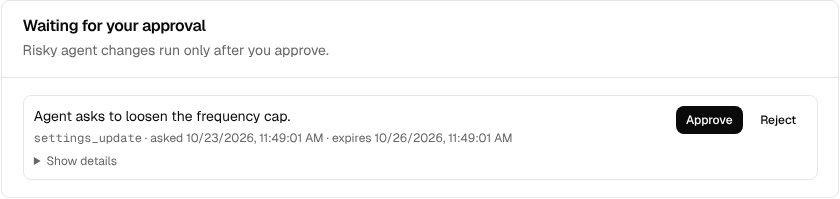
- Click Show details to see exactly what the agent asked for.
- Click Approve to run the change, or Reject to drop it.
- A request expires after 72 hours.
These changes need approval:
- Publish a campaign, or enroll a segment into one. The request shows how many contacts it reaches, and any outside site a webhook step sends contact data to.
- Change a running campaign, its flow, a template it uses, or its trigger segment's rules.
- Delete a campaign that is not a draft.
- Turn on Autopilot in auto-execute mode, or switch to it.
- Raise Autopilot limits or add a channel while Autopilot runs in auto-execute mode.
- Reset Autopilot.
- Loosen the frequency cap, change or remove quiet hours, shorten the survey cooldown, or change the phone region.
Agents can always add or tighten limits, pause a campaign, and turn Autopilot off, without approval.
Step 8: Keep keys safe
- Create one key for each agent or person, so you can revoke one without stopping the others.
- Give each key only the scopes it needs.
- Revoke a key when the work is done. A revoked key stops working at once and moves to Revoked keys.
- Every tool call is written to the audit log with the key and the tool name.
Troubleshooting
| The agent reports | What it means | What to do |
|---|---|---|
401 missing or invalid Action API key | The header is missing, the key is wrong, or the key is revoked. | Check the Authorization: Bearer act_… header. Create a new key if needed. |
403 this key belongs to another workspace | The key does not match the workspace URL. | Use the URL in the message, or the central URL. |
insufficient_scope, or a tool is missing | The key does not have the scope. | Create a key with the scope (Step 1), and update the client. |
pending_approval | The change waits for an owner or admin. | Approve it in Settings → Agent access (Step 7). |
| daily AI limit reached | The workspace used its AI requests for today. | Try again tomorrow. |
| complete your brand context | The brand profile is not complete. | Do Step 3 first. |
ready: false from campaigns_preflight | Something blocks publishing, for example a step with no template. | The problem text names the step and field to fix. |
| Workspace is suspended, or credit balance is zero | The workspace cannot send. | Top up in Settings → Billing. |
| Autopilot is not set up yet | There is no Autopilot setup. | Do Step 4 first. |
| active campaign(s) … use this template / segment | A live campaign still uses it. | Pause or change that campaign first. |
| trigger_type must be manual, event, segment or segment_membership | Agents cannot set other triggers. | Set weather triggers in the dashboard. |
Related
MCP server for AI agents
Reference for the MCP server: URLs, scopes, every tool, approval rules and limits. Agents use it to set up your brand, settings and Autopilot, and to draft AI campaigns.
Engagement Autopilot
An AI engagement brain that watches each contact’s lifecycle, spots opportunities, and proactively drafts (or ships) tailored campaigns to grow retention.
Activating the autopilot
Turn on the Engagement Autopilot: pick a lifecycle model, map your events to canonical behaviors, choose autonomy, and select participating channels.
Autonomy & guardrails
Choose whether the autopilot proposes or ships campaigns, and set the volume, audience, and channel limits that bound it.