Chatwoot integration
Turn support conversations into automation signals — follow up after a ticket is resolved, and hold marketing back while someone is mid-conversation.
Connect your Chatwoot inbox and support conversations become ordinary events in EngageApp. Everything you can already do with an event works on a conversation: start a campaign, branch on it, wait for one, or reference its details in a message.
What it unlocks
- Post-resolution follow-up — ask for feedback, or check in a few days after a ticket closes.
- Win back an unhappy customer — trigger on a low CSAT rating instead of finding out at renewal.
- Quieter marketing — branch a campaign so it holds off while someone has an open conversation with support.
- Lead capture — trigger when someone opens the chat widget on your site.
- Support-driven segments — sync Chatwoot labels onto contacts and build segments from them.
Connect Chatwoot
- Create an API key under Settings → Developers. That key is how Chatwoot authenticates to EngageApp.
- In Chatwoot, open your profile settings and copy your access token. Note your account ID too — it's the number in the dashboard URL,
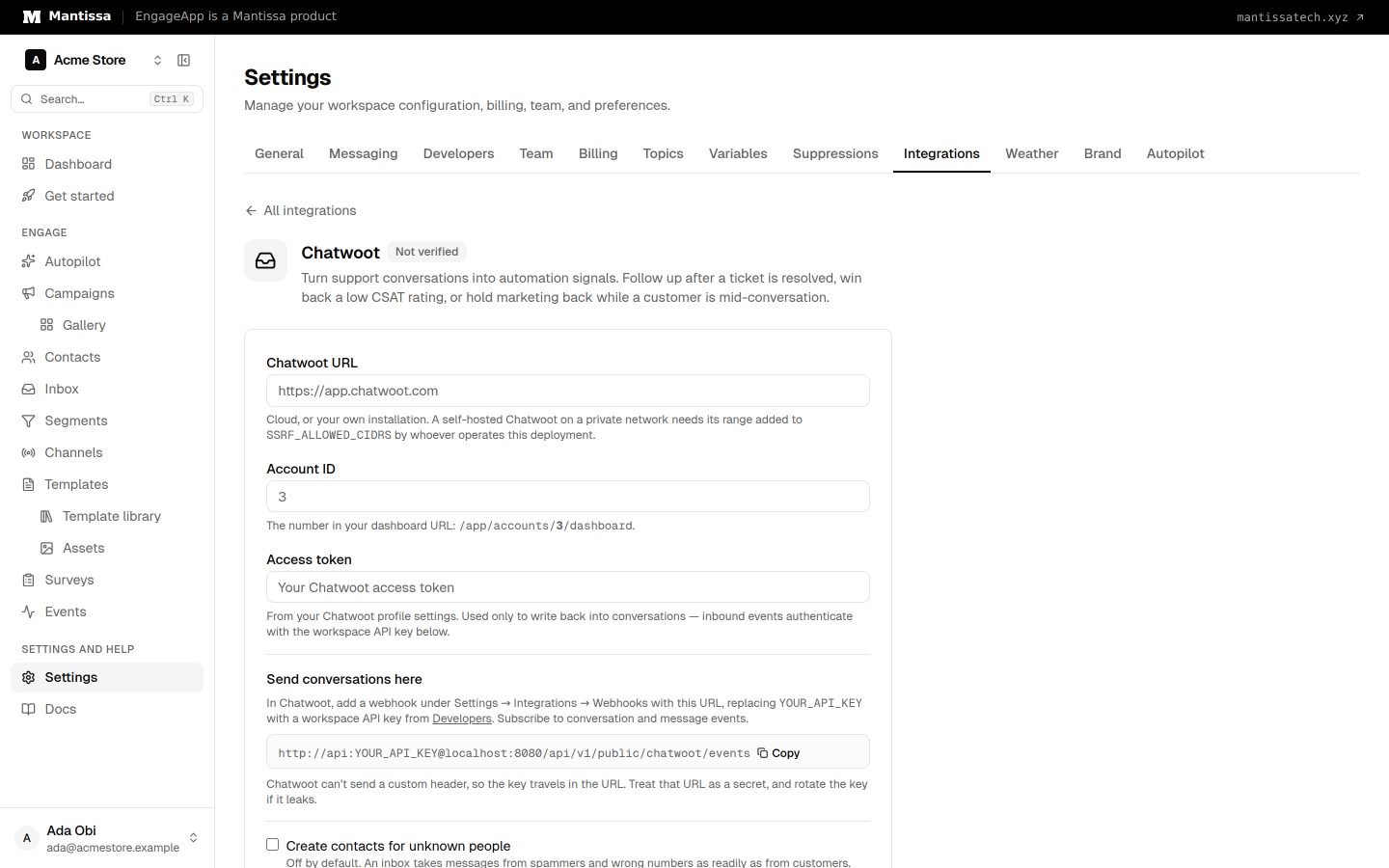
/app/accounts/3/dashboard. - In EngageApp, open Settings → Integrations and choose Chatwoot. Fill in the Chatwoot URL, Account ID and Access token, choose Save, then press Test connection. That checks the token and the account ID together, which is the pairing people usually get wrong.
- Copy the webhook URL from the Chatwoot page and add it in Chatwoot under Settings → Integrations → Webhooks, replacing
YOUR_API_KEYwith the key from step 1. Subscribe to conversation and message events.
Why the key goes in the URL
Chatwoot webhooks send only a URL — there's no field for a custom header. The key therefore travels as HTTP Basic credentials inside the URL itself. Treat that URL as a secret, and rotate the key under Settings → Developers if it ever leaks.
Events you can trigger on
| Event | Fires when |
|---|---|
conversation.started | A new conversation is created. |
conversation.resolved | A conversation is marked resolved. |
conversation.status_changed | Any status change, with status and previous_status. |
message.received | The customer sends a message. |
message.sent | An agent replies — only if you switch it on. |
csat.submitted | A CSAT survey is answered, with rating and feedback. |
chat.widget_opened | Someone opens the chat widget on your site. |
Every conversation event also carries conversation_id, status, inbox_id, inbox_name, channel, assignee, team and labels, so you can filter or interpolate any of them — for example {{ event.assignee }} in a follow-up message.
Settings worth understanding
- Create contacts for unknown people — off by default. An inbox takes messages from spammers and wrong numbers as readily as from customers, so turning this on will capture both.
- Record agent replies as events — off by default. A busy inbox writes one event per reply, and few automations key on it. Private notes are never recorded either way.
- Sync labels onto contacts — makes support-applied labels available to segment rules.
Writing back into a conversation
Add an action step to a campaign and choose Write to Chatwoot. Five things it can do:
- Add a private note — agent-only context, e.g. "enrolled in Winback, clicked pricing twice". The lowest-risk and most useful of the five.
- Send a message — the customer sees this one.
- Add labels — merged with the conversation's existing labels, never replacing them.
- Resolve the conversation.
- Assign to a team — by name, exactly as it appears in Chatwoot.
Notes and messages render template variables, so {{ contact.first_name }} means the same thing here as in an email.
Each step acts on the contact's most recent conversation, looked up live by email then phone. A contact with no conversation fails the step with that reason rather than doing nothing quietly. And because a write-back would otherwise come straight back as a webhook, events about a conversation we just wrote to are ignored briefly — so a campaign that annotates conversations can't re-trigger itself.
Showing EngageApp inside Chatwoot
Chatwoot Dashboard Apps embed a page in the conversation sidebar. Point one at a page of yours that calls the panel URL from Settings → Integrations, and an agent sees the contact's lifecycle stage, active campaigns, recent sends and subscription state without switching tools.
An unknown customer answers 200 with found: false and echoes back what was searched — deliberately, so an agent can tell a genuinely unknown person from a mismatched email, which a bare "not found" cannot.
Sending through Chatwoot
Go to Channels → Add channel → Chatwoot and enter your Chatwoot URL, Account ID and an Access token (Chatwoot: Profile settings → Access token). Campaign messages can be delivered into the customer's conversation instead of out through email or WhatsApp. The message appears in the inbox an agent is already watching, and the customer's reply comes back as an ordinary message.received event — which is what turns a one-way campaign into a conversation.
The channel carries its own Chatwoot credentials, so you can send from a different inbox than the one you take support on if you want to.
Two things worth knowing:
- It only reaches people who have been in touch. A contact with no Chatwoot conversation fails the step with that reason, rather than appearing to send.
- It's metered like any other channel. Delivery costs us no carrier fee — your inbox and your provider carry the message — so it defaults to the same credit cost as email. Platform admins can change it on the credit-costs page.
If you also send to the same people over WhatsApp, nothing special is needed to avoid double-messaging: your workspace frequency cap is per contact across every campaign and channel, and applies here too.
Self-hosted Chatwoot
If your Chatwoot runs on a private network, whoever operates this deployment needs to add its address range to SSRF_ALLOWED_CIDRS. Without that, outbound calls to it are refused — the same protection that stops a workspace pointing an integration at internal infrastructure.
Troubleshooting
- Nothing arriving? The ingest endpoint answers with a count of what it did —
ingested,duplicate,suppressedandskipped. Chatwoot shows that response in its webhook log. All skipped usually means the event type isn't one that produces automation signals (typing indicators, for instance). - Events aren't landing on a contact? A conversation is matched to a contact by email, then phone, then the Chatwoot contact ID stored on the contact. A person with none of those can't be matched — turn on unknown-contact creation, or import them first.
- "Test connection" says no such account — the token is valid but belongs to a different account. Check the number in your Chatwoot dashboard URL.
Related
Events
Send behavioral events about your contacts to trigger campaigns, gate waits, and power segments.
Triggers & enrollment
A trigger decides how contacts get enrolled into a campaign — manually, by event, on a schedule, or when they join or leave a segment.
Contacts
How EngageApp models your end-users as contacts, the fields they carry, and the ways to add them.
API keys
Create and manage secret, publishable, and scoped Action API keys. Secret df_ keys do not grant dashboard or campaign access.