Team & roles
Invite members to your workspace and control what they can access with owner, admin, finance, campaign editor, member, and viewer roles.
Your workspace can have multiple members, each with a role that determines what they can see and do. Manage them under Settings → Team.
Inviting members
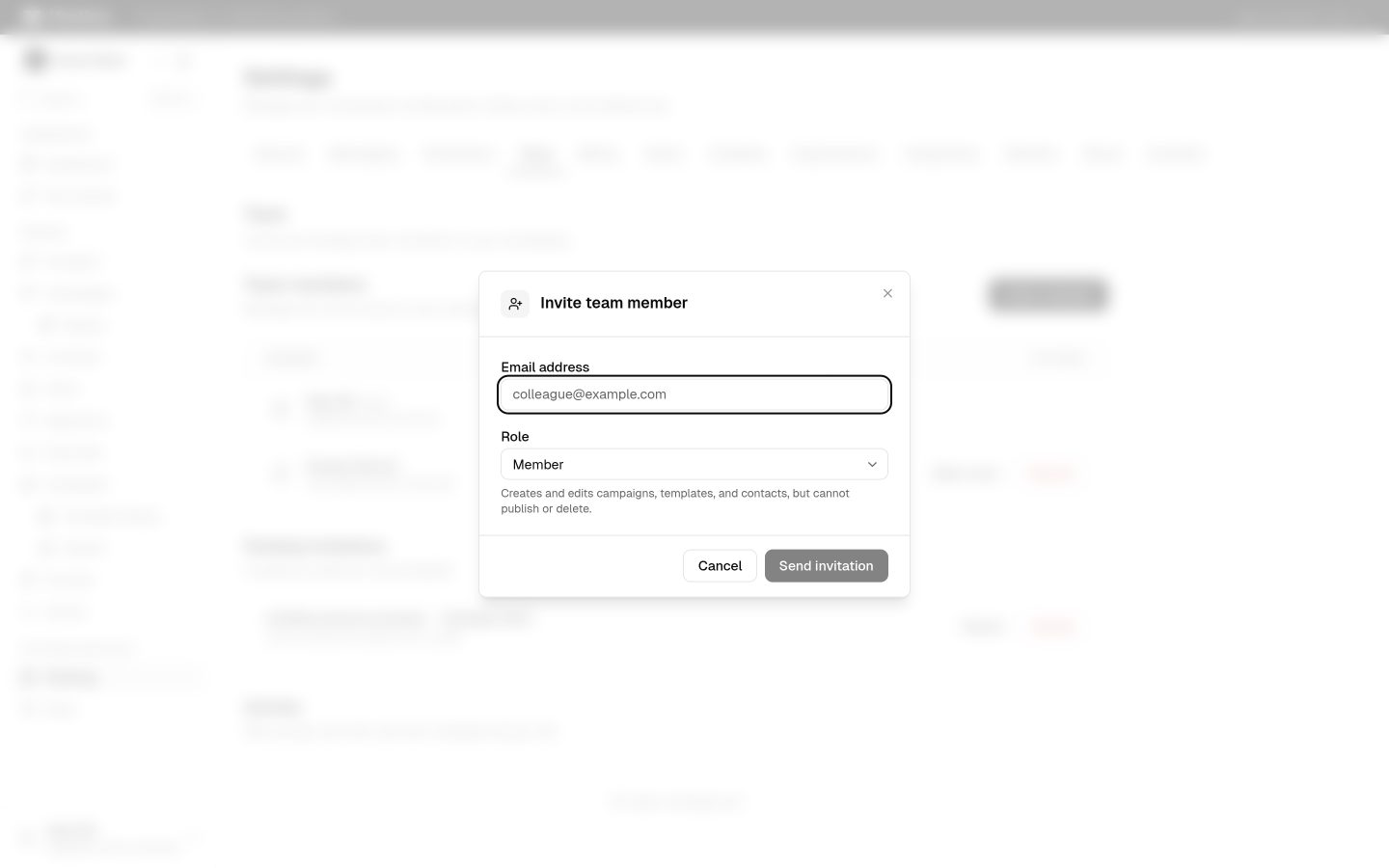
Invite a member by email from Settings → Team. Owners and admins can invite. The invitee receives an invitation and joins once they accept it. You can change a member's role or remove them at any time. An admin cannot change or remove another admin; only an owner can.
Roles
- Owner — full control of the workspace. Only an owner can transfer or delete the workspace.
- Admin — full access to settings, channels, API keys, billing, and the team.
- Finance — tops up credits, sets the low-balance alerts, and gets the warnings. Read-only everywhere else.
- Campaign editor — creates and edits campaigns, templates, segments, and contacts, and can publish and delete them.
- Member — creates and edits campaigns, templates, segments, and contacts, but cannot publish or delete them.
- Viewer — read-only access.
Ownership is not granted by invitation. An owner hands it over with the transfer flow.
What roles gate
Role gating hides areas a role cannot change. Channels appears only for owners and admins. Settings (which holds Billing, Suppressions, Topics, Integrations, and the other tabs) appears for owners, admins, and the Finance role. Every role can see campaigns, segments, templates, and contacts. Viewers and Finance members cannot change them.
Your own account
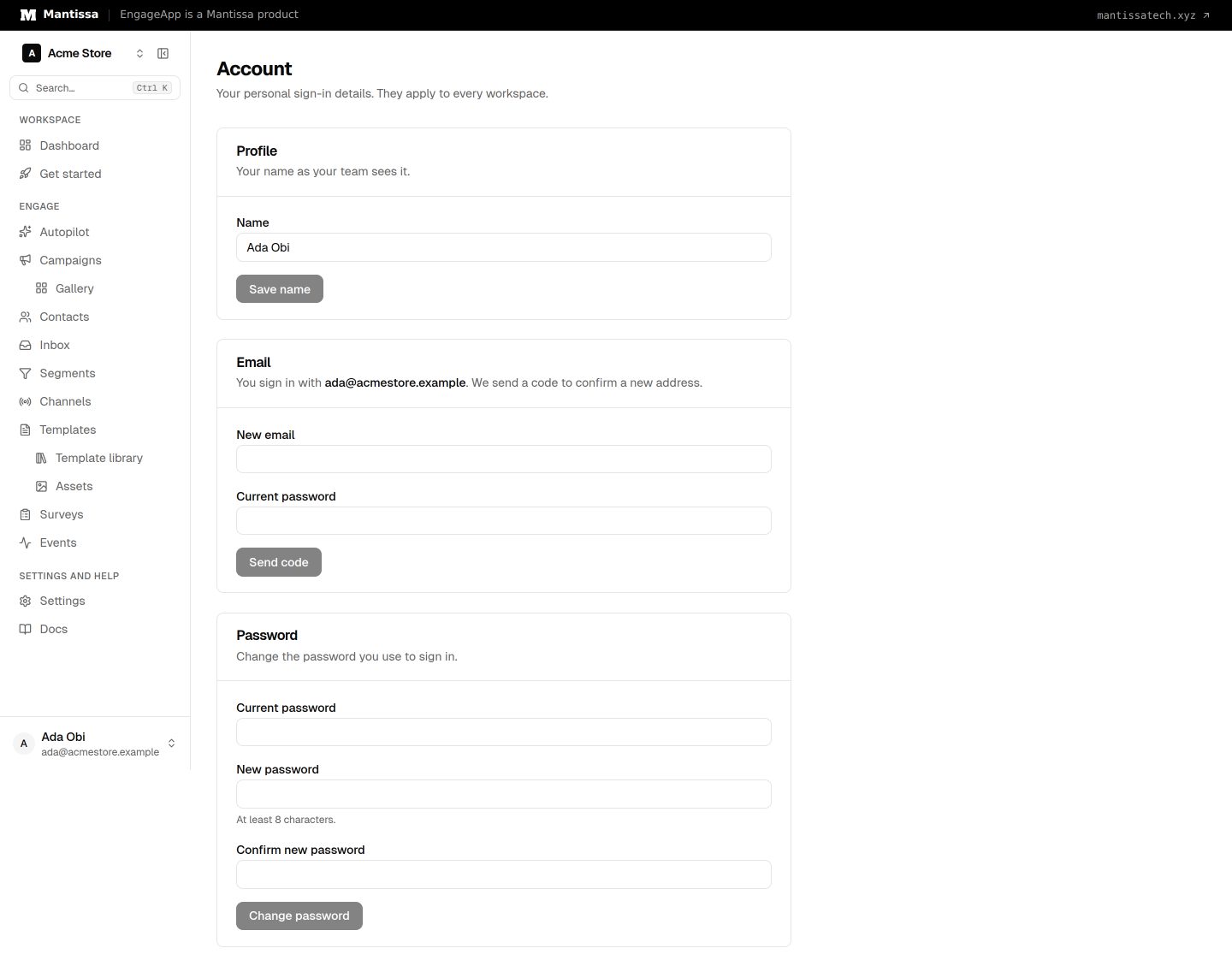
To change your own name, email address, or password, open the user menu at the bottom of the sidebar and choose Account settings. To change your email, enter the new address (and your current password, if you have one), then enter the 6-digit code that EngageApp sends to the new address.
Next steps
- Create credentials for your integrations under API keys.
- Review wallet access and costs in Billing & credits.